 from the Security window.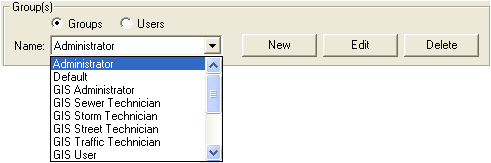

 . The user name you selected will now appear in the Assigned Users window. Now the user has all the permissions that are assigned to that group.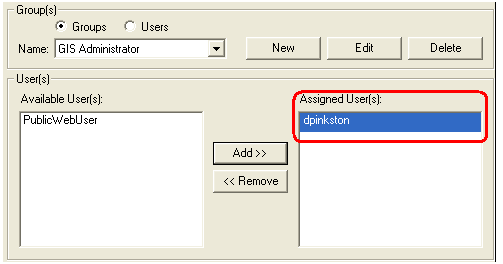
 to save your changes.
After adding all the necessary groups, you can assign users to each group. You can assign as many users as necessary. You can also add or remove users from groups at any time. There are two ways to assign a user to a group; both ways achieve the same result.
To assign a user to a group, complete the following steps:
from the Security window.
. The user name you selected will now appear in the Assigned Users window. Now the user has all the permissions that are assigned to that group.
to save your changes.Repeat steps 1-5 to assign additional users to the group.
Note: Permissions do not take affect until the user exits and re-enters the software.
Note: To remove a user from a group, follow the same steps as assigning a user to a group; except in step 4, select  instead of "Add". The group or user name will then be removed from the Assigned Group or Assigned User list.
To assign a group to a particular user, complete the following steps:
 from the Security window.
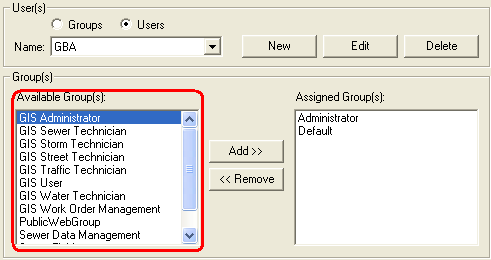
. The group name you selected will now appear in the Assigned Groups window. Now the user has all the permissions that are assigned to that group.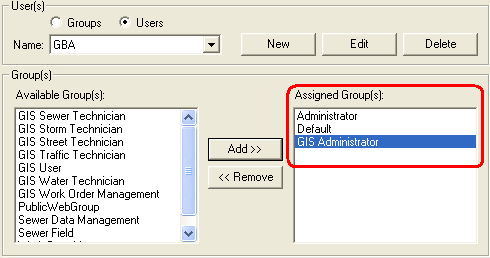
to save your changes.Repeat steps 1-5 to assign additional groups to the user.
Note: Permissions do not take affect until the user exits and re-enters the software.
Note: To remove a user from a group, follow the same steps as assigning a user to a group; except in step 4, select instead of "Add". The group or user name will then be removed from the Assigned Group or Assigned User list.