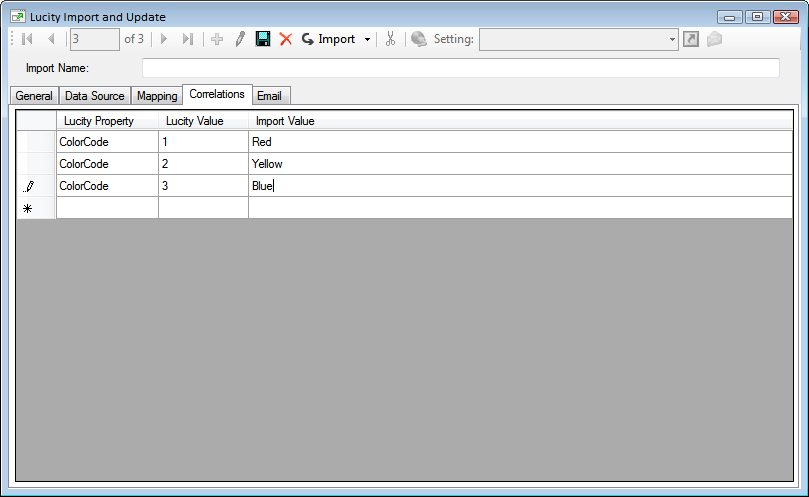
This tab allows a way to correlate values in the import data to values in Lucity when values do not already match between the two systems. The Correlations tab is primarily intended to correlate values for picklist fields, however, it is not limited to picklist fields. Only fields identified in the Mappings tab can be correlated.
Lucity Property |
The Lucity Property that requires a correlation. This is the Property from the Mapping Tab. |
Lucity Value |
The value that will be filled into Lucity when the related Import Value is imported. |
Import Value |
The Value that needs to be translated to the Lucity Value during the import. |
How To Setup a Correlation