 .
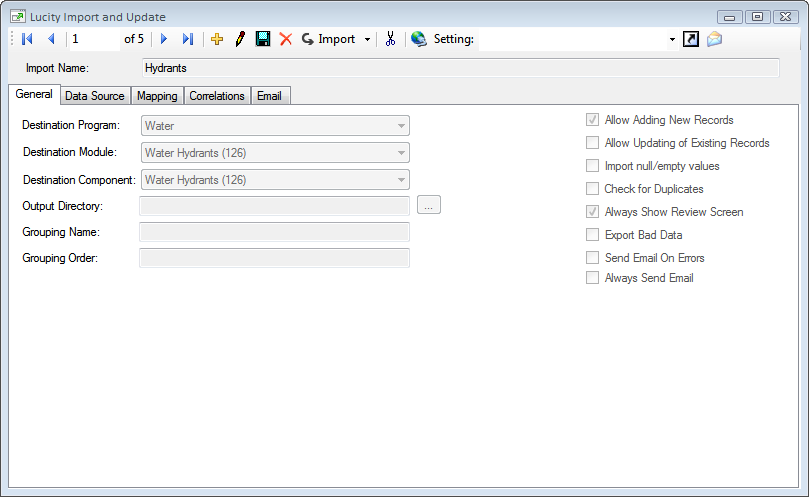
.The General Tab stores the following information about the import.
.
Destination Program Destination Module Destination Component |
Controls which part of Lucity the imported records will go. Selects a program, a module, and one of its components. |
Output Directory |
A network directory that the program will export a list of bad records to. This file is made up of any records that couldn't be imported. This happens when the Export Bad Data option is checked. |
Grouping Name |
This is used when running a Group Import. This field is filled out if the configuration is part of a group of imports that must/can occur together in a specific order. While each part of the import has a different configuration they will all share the same Grouping Name. Example: A PACP import will have a configuration for the PACP Inspection and a configuration for the PACP observations. These two configurations will share the same Grouping Name. |
Grouping Order |
This is used to organize what order Group Imports occur in. The first configuration that should be imported is marked as 1, the next 2, etc... Example: A PACP inspection import will have a Grouping Order of 1 and the PACP observation import will have a Grouping Order of 2. When the Group Import is run the inspections are imported and then the observations are imported. The order is important because the observations must be attached to an inspection. |
Import Options
Allow Adding New Records |
Allows the import to create new records in Lucity. |
Allow Updating of Existing Records |
Allows the import to update attribute fields on existing records in Lucity based from import data with a matching Common ID. Note: If you are importing child records and Lucity does not provide a way to uniquely identify the child record, then all imported records will be treated as new records even if this box is checked. Records that fall into this category can be identified when filling out the mapping tab. Fields that uniquely identify a record or that link it to a parent record are marked in green. Child records that have a parent linking field but no unique field marked in green will fall into this category. |
Import null/empty values |
Tells the import whether or not it should import null or empty values. If this is checked null or empty values can overwrite non-null values in the database. |
Check for Duplicates |
Causes the import program to check for duplicate records in the import data based on the unique fields in the destination module. |
Always Show Review Screen |
When bad records are encountered a review screen is automatically displayed so users can review the data. If this option is checked the review screen will be displayed every time the import is run, whether there are bad records or not. |
Export Bad Data |
Exports records that cannot be imported into a .csv file. |
Send Email on Errors |
Mark this box to send a notification after an import is completed if there are errors and the Email tab is filled out. |
Always Send Email |
Causes the import to send an email notification after an import is completed if the Email tab is filled out. |