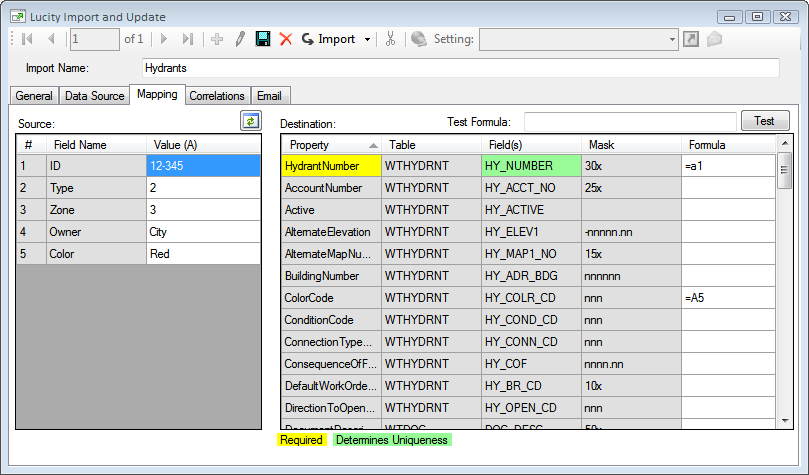
The Mapping Tab allows users to link fields from the data source to fields in Lucity.
Source grid
This grid displays a list of all the fields found in the source data and an example of the data found in those fields
# |
An Id for each field. This is used to identify a field during the mapping |
Field Name |
The name used by the source data for the field |
Value (A) |
An example of what the field contains. The data displayed comes from the first record in the source data. |
Refresh |
This button refreshes the Source grid. This button must be pushed if the Data Source has been changed in any way since the last time the Settings records was saved. |
Destination grid
This grid displays a list of all the properties found in the Lucity module and provides the ability to link those properties to a field in the Source grid.
Lucity properties often indicate a specific field, however this isn't always true. Sometimes a property represents multiple fields in Lucity. For example the Street property links to the XX_ADR_STR field, however the Street property actually is for mapping the entire street value. The import automatically splits it the data between the different address fields.
Property |
An alias name for the Lucity field |
Table |
The name of the Lucity Table this information will be going into. Not every part of the import will go into the same table. For example users can import document paths to attach documents to a feature. The document paths can be part of the source data, but end up in another Lucity table. |
Field(s) |
The name of the field within the listed table. |
Mask |
This shows what type, and how much data the field will hold. |
Formula |
These fields allow users to enter a formula for what should appear in the Lucity field. More about formulas is provided below. |
Test Formula |
This is a field that allows users to enter a formula and see the results by pushing the test button. This allows them to see exactly what would be inserted into the Lucity database using that formula. If the formula includes data from the Source Data it will use the data from the first record in that data source. |
Formulas
Formulas are how the Import program knows what to import into Lucity. A formula can do something as be as simple as "This source data goes in to that Lucity field" to complex operations like Formatting, Data Conversion, etc. Note that if the first character is +, a Function is expected and strings containing =A plus a number are interpreted as column mappings.
When a formula is specified by utilizing the + character as the first character, the Import and Update will generate a sql statement that it passes to the underlying Lucity database platform to resolve the formula. This is done by first replacing the mapped values in the formula with the data from the import file, removing the +, then issuing a SELECT statement with the resulting value. So, if a user specifies a formula of +CAST('=A1' AS VARCHAR) and the mapped data for A1 is Test, the following sql statement is issued: SELECT (CAST('TEST' AS VARCHAR)) AS TEXTVAL
Simple Functions
Map Source Data to Lucity
|
Click on a value in the Source grid and drag it to a related Formula field in the Destination grid. Alternatively, in the Formula field in the Destination grid type =A+#. (# refers to the first column in the Source grid
|
Insert a value into a Lucity Field |
|
Perform a simple calculation |
|
Advanced Functions
Force the Database to Insert the Date |
|
Convert Data Types |
To convert the text data ‘00066’ into the numerical value ‘66’:
|
