To access the Lucity Security Program, a user must have the Run permission for Security Admin.
If this is a new Lucity install, and no user has been granted this permission, any user who launches the Security Program will be prompted to enter database management system (DBMS) login credentials.
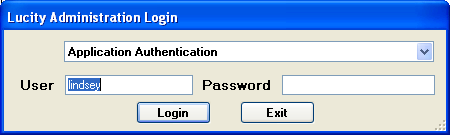
If at least one user has the Run permission, the regular Lucity Administration Login prompt appears when the Security Program is launched:
Should a Lucity administrator forget his or her password, or, if a Lucity administrator is unavailable or leaves an organization, another person with high-level DBMS credentials can access the Security Program by pressing CTRL-Rat the Administration Login prompt. The login fields will change, allowing the user to enter a database system administrator login and password.
Launch the Security Program. (See Accessing the Security System for instructions.)
Log in using DBMS authentication.
In the menu go to Security > Users/Groups Setup.
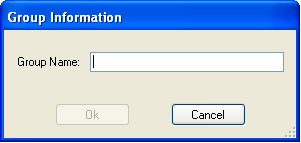
Click New Group to create a new group.
Called the new group Security Admin.
Select the user(s) you want to be security admin(s). Select the Security Admin group. Click the Associate button to assign the users to the Security Admin group.
To login to the Lucity Security Program, complete the following steps:
In the Start menu, select Programs > Lucity > Lucity Tools > Lucity Security. The Select a Client screen appears:
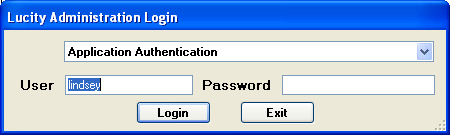
Select your client from the drop-down and click OK. The Security login screen appears:
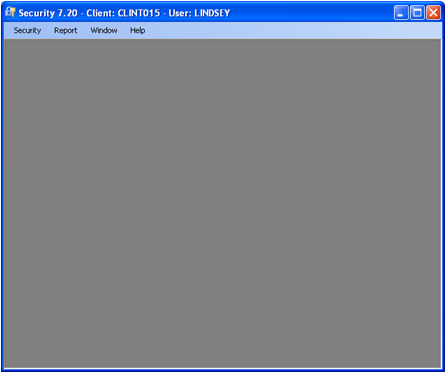
Enter your User name and Password. The Security program opens:
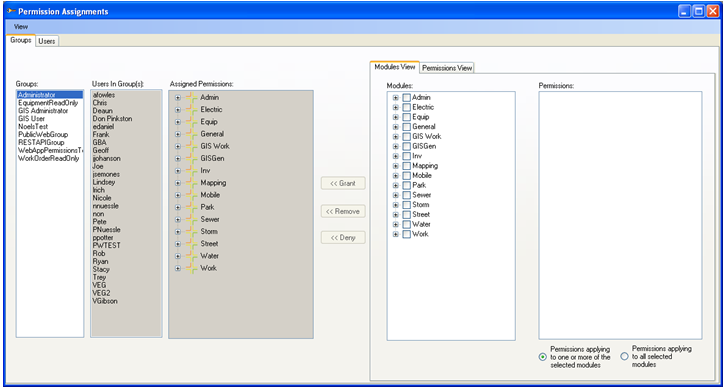
Select Security>Permissions Setup. The Permission Assignments window appears:
Note: The Permission Assignments window is the primary Security interface. It allows the user to add, edit, delete, and view various groups' permissions.
In Lucity Security select Security > Users/Groups Setup.
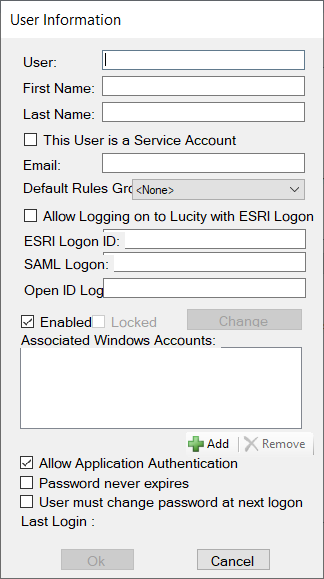
Click New User (under the Users grid). The following window appears:
In the User field, enter the username the employee will use to log in to their account (required).
Complete other fields as desired.
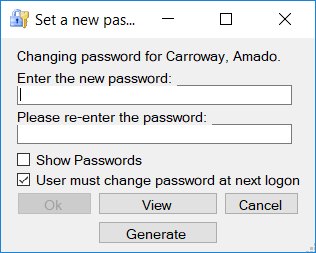
Click OK. The following pop-up appears prompting you to set a password for the new user:
Enter the new password and then re-enter it.
Click Show Password to see characters, rather than asterisks, while typing.
Note: The minimum length of the password is set by the system administrator in the Lucity Administration Tool. The maximum password length is 20 characters. Passwords are case-sensitive, and can include any standard characters and symbols (UTF 8 characters).
Click Ok. The system creates the user record and sets the password.
Note: The user must login to Lucity Web before they can be assigned a dashboard.
Note: Instead of deleting a user you can deactivate them by editing their User record and unchecking the Enabled box. Deactivating a user stops them from using the system while retaining their information for later use.
Select a user in the Users grid.
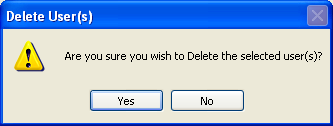
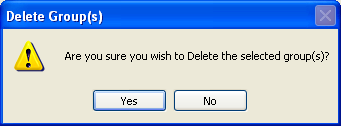
Click Delete User. A confirmation request appears:
Click Yes to remove the user from the Users grid. Click No to cancel the action.
Note: A Default Rules Group can determine which module views, GIS Views, and Dashboard Shared Tab Groups a user sees by default.
Open the Lucity Security program.
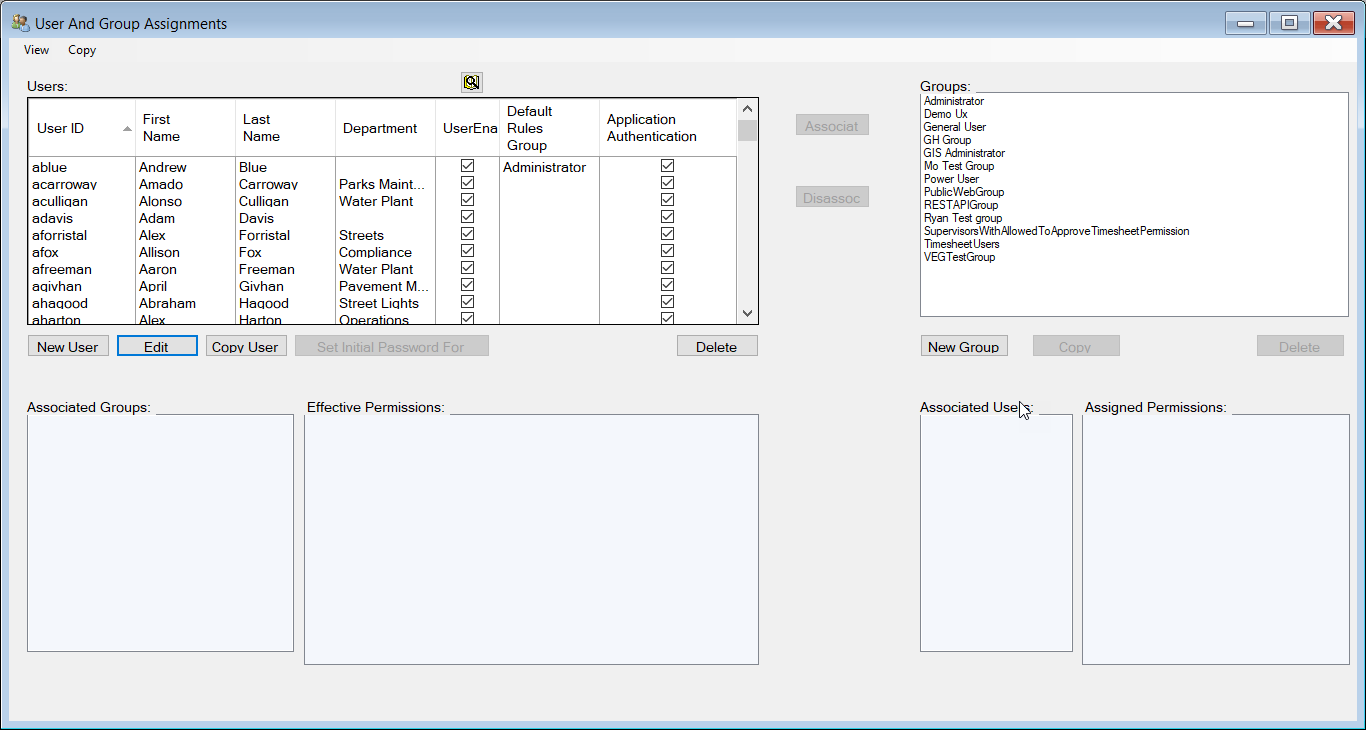
From the menu, select Security > Users/Groups Setup. The User and Group Assignments window opens:
In the Users grid, select the user you would like to assign a Default Rules Group.
Check the Associated Groups list in the bottom-left corner to determine whether the user is associated with Group you want to select as their desired Default Rules Group.
If the user is not associated with the desired group:
Select the user.
Select the desired Group.
Select the Associate button between the Users and Groups grids. The selected Group now appears in the user's Associated Groups list.
Select the Edit User(s) button. The following pop-up appears:
Use the Default Rules Group drop-down to select the desired Group.
Select OK. The selected Group is now the user's Default Rules Group.
Click Disassociate. The User is removed from the Associated Users and Associated Groups grids. The user no longer has the selected group's permissions.
In the Groups grid select one or more groups from which to remove a permission.
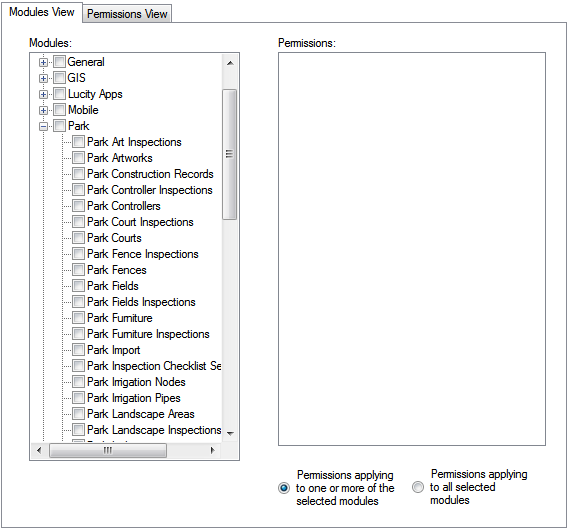
On the Modules View tab under Permission Controls, expand the module suite from which permissions should be removed.
Check the box next to the desired modules within the suite.
Note: To remove all permissions in the Park suite for a group, check the box next to Park. The system will check all modules underneath the root.
Select one or more permissions in the Permissions grid.
Note: Hold down theShift or Ctrl keys while clicking to select multiple items.
When all desired permissions are selected, click the << Remove button. The system removes the selected permissions from the selected group(s).
Permissions View Method
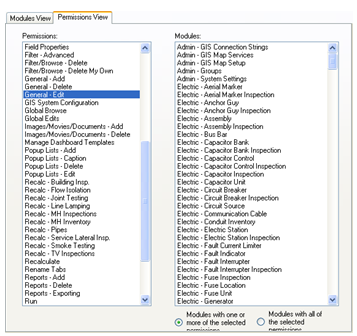
To remove a permission—like the General-Edit permission—applied to multiple modules in the Lucity program, select a group(s) in the Groups grid.
Open the Permissions View tab.
Select the desired Permission from the grid on the left.
Select the Modules from which to remove this permission and click the << Remove button. The system removes the permission(s) from the selected group(s).
Note: Hold down theShift or Ctrl keys while clicking to select multiple items.
In the Groups grid, select one or more groups to which to deny a permission.
In the Modules View tab, under Permission Controls, expand the module suite for which the permissions will be denied.
Check the box next to the desired modules within the suite.
Note: To deny a group all of the permissions in the Park suite, check the box next to Park. The system will check all modules underneath the root.
Select one or more permissions in the Permissions grid.
Note: Hold down theShift or Ctrl keys while clicking to select multiple items.
When all desired permissions are selected, click the << Deny button. The system denies the selected permissions from the selected group(s).
Permissions View Method
To deny a particular permission—like the General-Edit permission—across multiple modules in the Lucity program, select a group(s) within the Groups grid.
Open the Permissions View tab.
Select the desired Permission from the grid on the left.
Select the Modules to which to deny the permission and click the << Deny button. The system denies the permission(s) from the selected group(s).
Note: Hold down theShift or Ctrl keys while clicking to select multiple items.
Click Edit User. The Edit user dialog will appear:
Click the Change Password button. This popup will appear:
Enter the new password, and re-enter it.
Click Show Password to see what is being typed.
Check the User must change password at next logon box to force the user to change their password the next tiem they login. This will automatically be checked if the Default Setting for User Must Change Password At Next Logon system setting is enabled
Click Ok. The password is changed.
If you would like the user to be forced to change their password next time they login check the User must change password at next logon box.
Length: A Lucity loginpassword must have at least one character; however, an agency may require a specific minimum/maximum number of characters.
Complexity: Depending on preferences configured in the Lucity Administration Tool, an agency may require that user passwords contain three of the following:
an uppercase letter,
a lowercase letter,
a number, or
a special character.
Frequency: Some agencies may require users to update their Lucity passwords after a designated number of days. In such cases, the system automatically prompts users to change their passwords.
Simple Passwords: User passwords may be denied because they:
consist of repeated values - 1111111, AAAAAA;
consist of a common sequence - 1234567, ABCDEFG;
supply user information - logon, first name, last name, email address; or
include one of these easily guessed passwords - password, qwerty, abc123, iloveyou, admin, letmein, qwertyio, football, baseball, welcome, 1qaz2wsx, dragon, master, monkey, login, princess, qwertyiop, passw0rd, p@ssword, p@ssw0rd, starwars, lucity, gba.
 Setting up a Security Admin User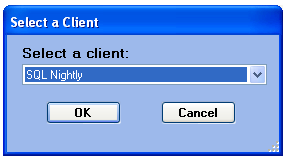
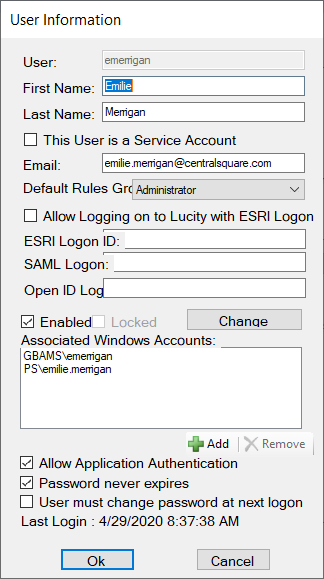
 . The User Information dialog appears: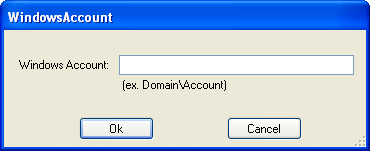
 s
s