Administrators can select a security group to serve as a user's main security group or Default Rules Group. In some cases, Lucity Web displays information based on a user's security group. Because users may be members of multiple Groups, it is important that administrators define a Default Rules Group for each user.
The following can be configured to apply to Default Rules Groups and thus the users who have it set as their Default Rules Group:
Note: A Default Rules Group can determine which module views, GIS Views, and Dashboard Shared Tab Groups a user sees by default.
Open the Lucity Security program.
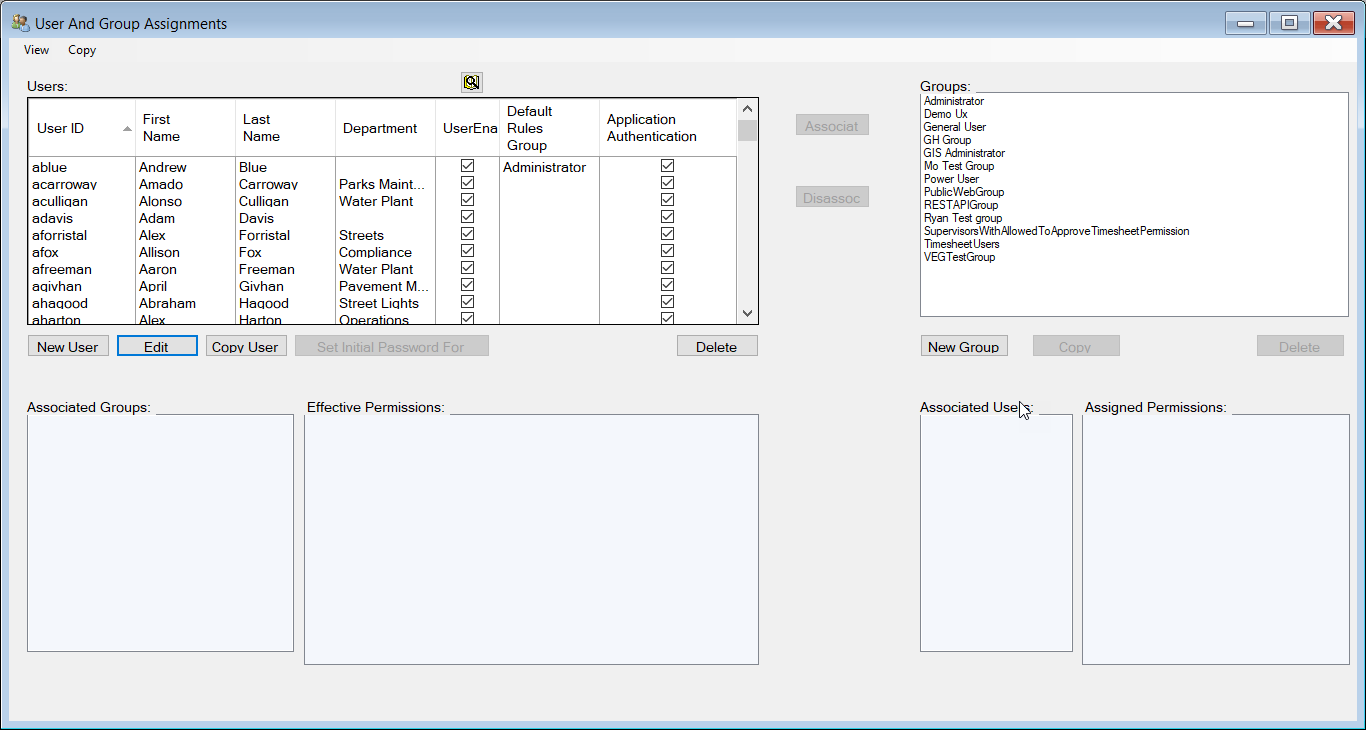
From the menu, select Security > Users/Groups Setup. The User and Group Assignments window opens:
In the Users grid, select the user you would like to assign a Default Rules Group.
Check the Associated Groups list in the bottom-left corner to determine whether the user is associated with Group you want to select as their desired Default Rules Group.
If the user is not associated with the desired group:
Select the user.
Select the desired Group.
Select the Associate button between the Users and Groups grids. The selected Group now appears in the user's Associated Groups list.
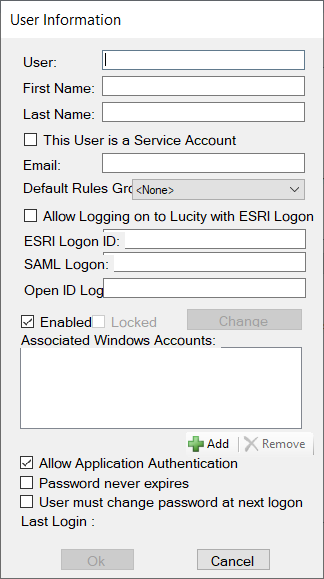
Select the Edit User(s) button. The following pop-up appears:
Use the Default Rules Group drop-down to select the desired Group.
Select OK. The selected Group is now the user's Default Rules Group.
 How to set a user's Default Rules Group