Lucity/CS EAM gives you the ability to collect electronic signatures (e-signatures) and associate them with arecord. Although these signatures are not legally binding, they provide an informal means for associating approval or authorization with record details. For example, an e-signature could document that a customer approves the work performed as a result of a Work Request or that a supervisor signs off on an Inspection.
Signature Setup
Preparing to accept an electronic signature is a three-step process that you complete using Lucity/CS EAM Web and your reporting software (for example, Crystal Reports or Microsoft Excel):
Create a Signature Template using the Signatures module available in the Lucity/CS EAMSystem Configuration program.
Add the Signature Template to a specific form using Lucity/CS EAMWeb's Design Mode.
Configure the relevant reports to display the signatures.
A Signature Template is a blank field that can be added to a Lucity/CS EAM form. When a record is opened in the form in Lucity Mobile or CS EAM Mobile, a person can sign their name using the device. Their signature is then associated with that record.
Open the System Configuration >Signatures module.
Click Add . The Signature Configuration form appears.
Enter the Name of the Signature Template. (For example, Director Signature, Customer Signature or Supervisor Signature could be possible Names for different types of Signature Templates.)
Enter a Label for the Signature Template. This text appears above the blank field in which the user signs. (For example, Customer Sign Here or I approve the work performed today.)
Save the record.
Note: Once a Signature Template has been created and users implement it to collect signatures, the Name of the Signature Templatecannot be changed. The Label, however, can be edited.
Open the form to which you want to add a Signature field.
Select Menu and then Enter Design Mode.
Select the Advanced Elements section of the Form Components pane. A pop-up appears with a list of parent properties.
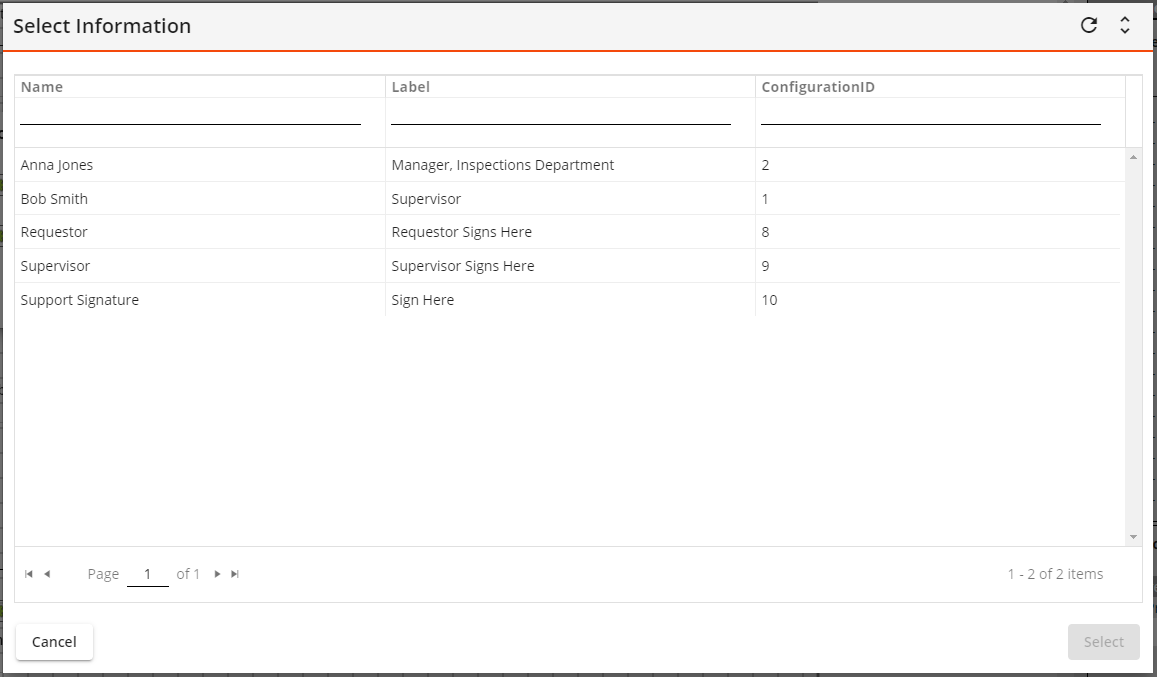
Select Signatures from the Advanced Elements list and click Add Element button. A dialog similar to the following appears, listing the available Signature Templates:
Select the desired Signature from the list and click Select. The Signature is added to the form and can be positioned as desired.
Repeat this process to add any additional Signatures.
Click Save to save changes to the form components. The Signature Template is now attached to the form and will appear on the form in Lucity/CS EAM Mobile, allowing a user to collect the signature(s).
Note: The Signature field will not appear in the form in Lucity/CS EAM Web.
Signatures captured in Lucity Mobile or CS EAM Mobile can be added to and displayed within Crystal Reports. Signature data is stored in the LSIGNATURE table of the Lucity/CS EAM database.
Note: Signatures added to a report via a third-party application must be viewed as documents attached to a Lucity record.
Use the following procedure to add a Signature to a report:
Find the .rpt file for the report to which you would like to add a Signature.
Edit the .rpt file using Crystal Reports.
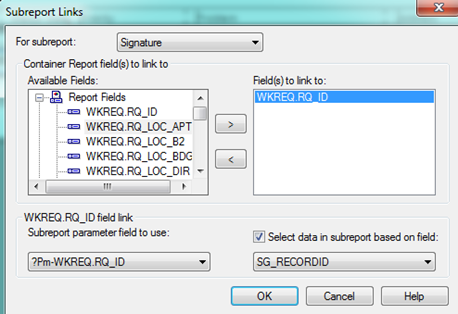
Add a subreport to the report, and point the subreport to Lucity's LSIGNATURE table.
Link the SG_RECORDID field in the LSIGNATURE table to the record ID field in the table for which the report is written. (In the example below, the record ID field for Lucity's Work Request module is WKRQ_RQ_ID.)
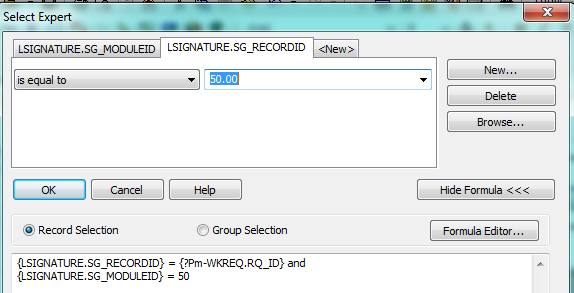
Using the subreport's Select Expert, reference the specific module that contains the Signature using itsKEYID, which can be found in the MODULES table. (In the example below, 50 is the ID for Lucity's Work Request module.)
Although multiple Signatures Types may have been linked to the original form, each Signature Type may only be used once on the form.
Once a Signature is added to the report, it appears as a blank space on the report even if the signature was not filled out in Lucity/CS EAM.
If multiple Signature Types were included in the form, the report must reference the specific Signature Type that should be displayed on the report.
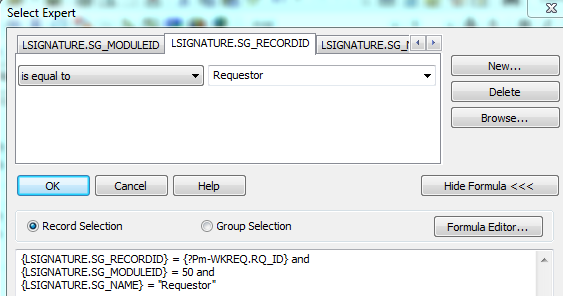
Within the subreport's Select Expert dialog, the specific Signature Type (SG_NAME) needs to be referenced.
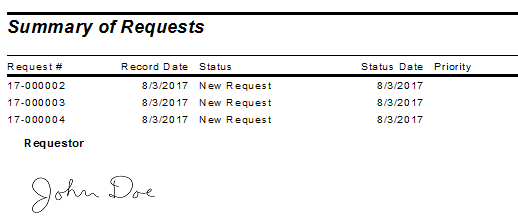
In the following example, a Signature Type named Requestor is associated with the record.
After the subreport is created and linked, add the SG_SIGNATURE field to the subreport. This field displays the signature.
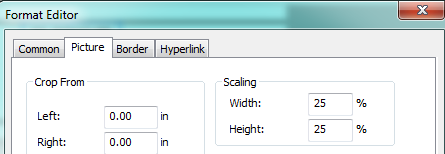
You may wish to resize the signature. This will require some experimentation. Select Format Graphic and scale the Width and Height to 25%. Adjust the measurements as desired.
To prevent empty space on the report when records do not have signatures:
In the Format Subreport section, check the Suppress Blank Subreport option.
In the main report’s Section Expert, click on the section where the Signature subreport is located and select Suppress Blank Section.
Note: If you plan to sign this report on a mobile device using a third party signature application, consider:
Make your signature field space(s) large enough for signing.
Do not suppress blank sections as you may want those to appear on the form for signing in the third party app.
Example Report
More information about editing forms
Setup considerations when collecting signatures using a third-party application
Lucity/CS EAM Mobile applications provide the ability to collect e-signatures. However, you can also add signatures to a Lucity/CS EAM record or report using an application developed by a third-party. If you choose this option:
Make sure that the report that will include the e-signature has field space(s) large enough for the signature graphics.
Avoid suppressing blank spaces in the report, because you may need them for signatures in the third-party application.
 How to create a Signature Template
 . The Signature Configuration form appears.
 the record.
 and then Enter Design Mode.
 button. A dialog similar to the following appears, listing the available Signature Templates: