The Menu > Signatures option (available when you are in a module in Selection Mode) adds one or more electronic signatures to a single record. This menu option only appears in modules that contain signatures or the ability to create them.
Although electronic signatures captured in CS EAM Mobile are not legally binding, they provide an informal means for associating approval or authorization with record details.
Press and hold the record to which you want to attach a signature.
OR
Select the desired record to open its form.
Note: You can only select one record to access the Signature function.
Select Menu and then Signature. The following dialog appears with a list of possible signatures that can be attached to this record:
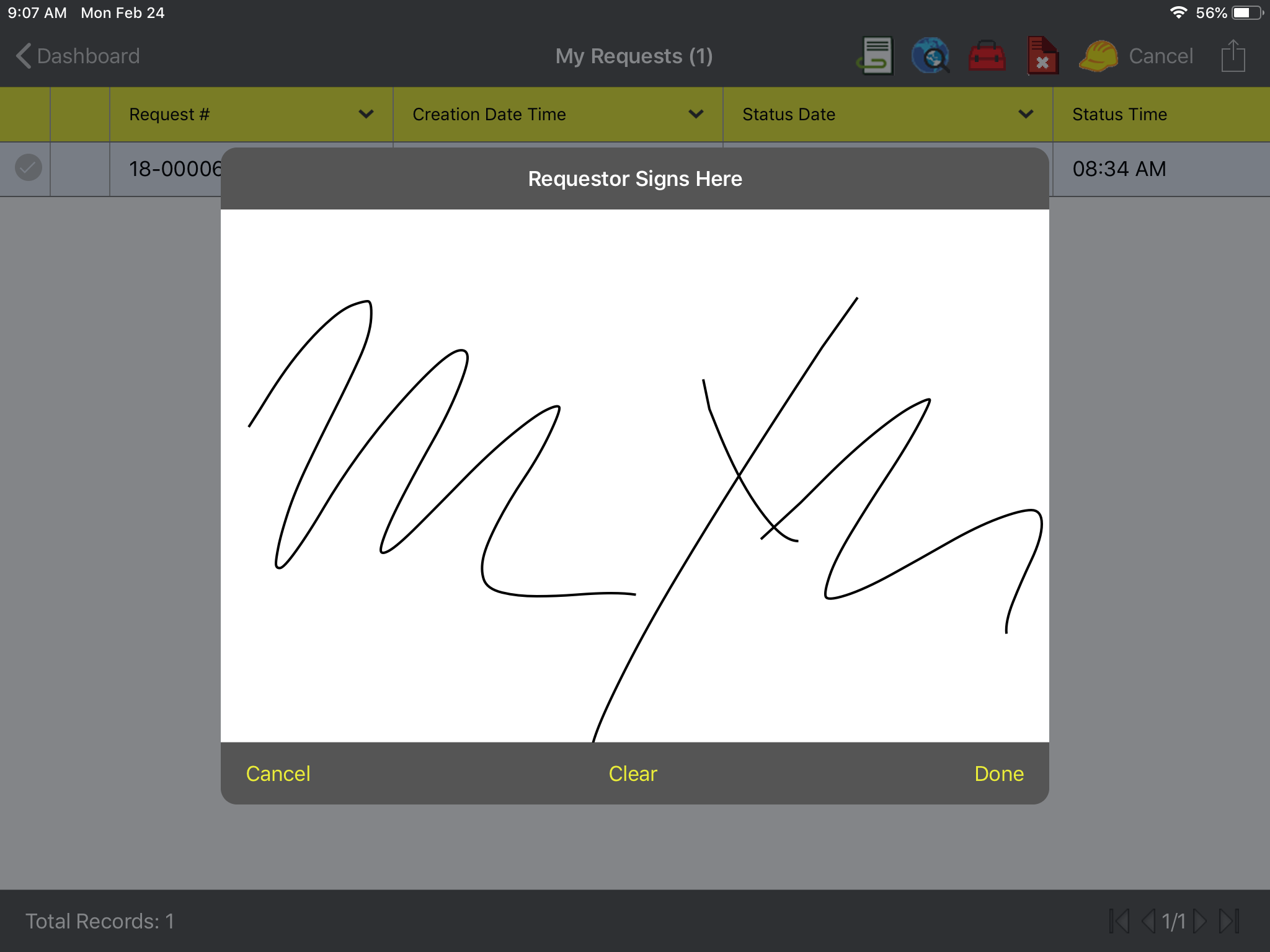
Select the type of signature that you want to collect. The signature capture dialog appears.
Sign in the box or ask the appropriate person to sign in the box:
What do you want to do?
Select Cancel to close the dialog.
Select Clear to erase the signature and sign again.
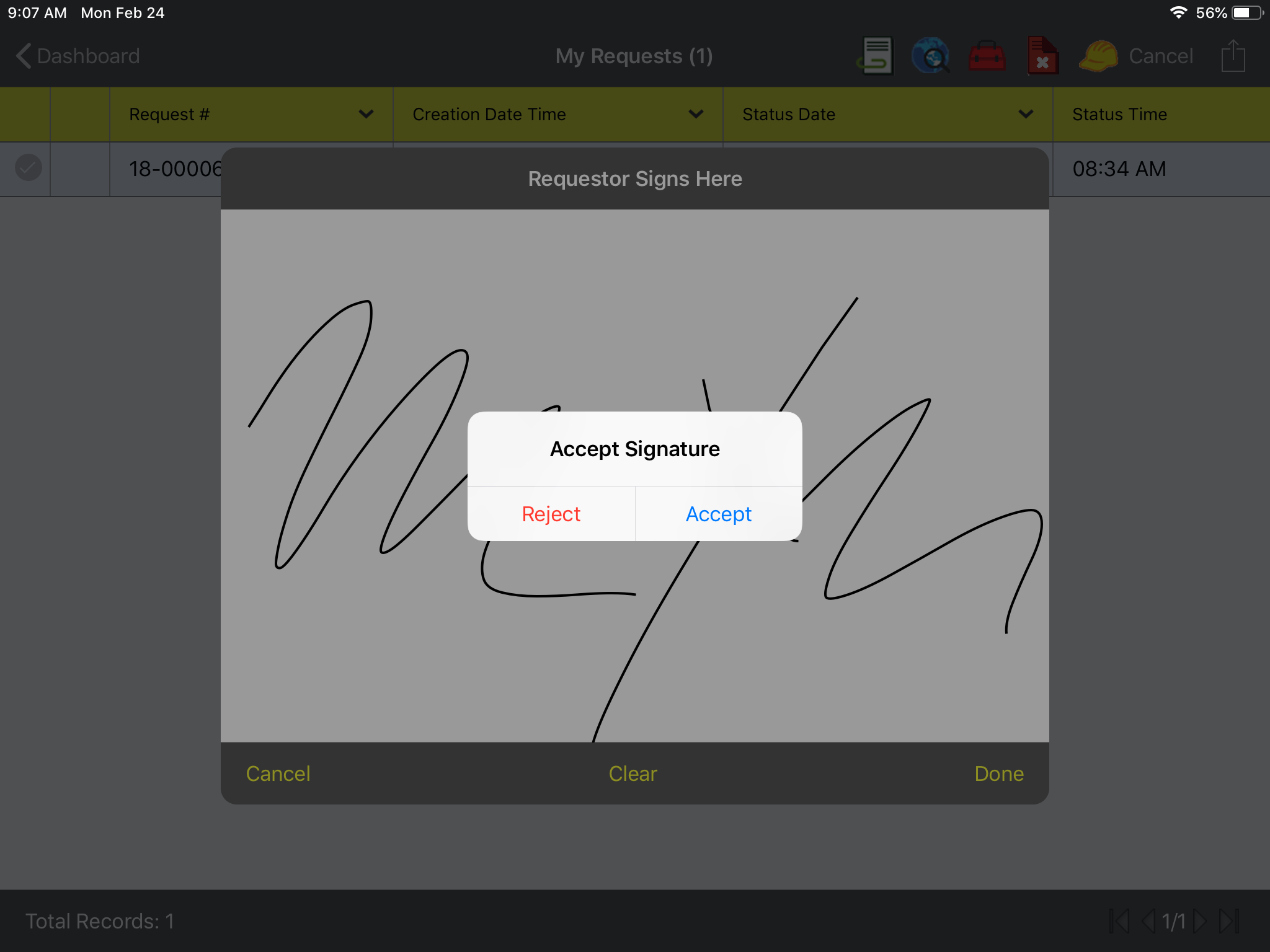
Select Done to proceed. The following confirmation dialog appears:
What do you want to do?
Select Reject to return to the Signature dialog.
Select Accept to approve the signature. The signature can now be used on any reports for this record that include signatures.
IMPORTANT: The signature will become locked on this record. You cannot edit or delete after you Accept.
Third party-captured signatures
You also have the ability to capture signatures on a CS EAM Mobile record using a third-party application. The process of using such an application is quite different: You instead use the Menu > Reports function in CS EAM Mobile to export a document to the application, then import that signed form into CS EAM Mobile as a Document record.
Important: You must already have a report configured that includes space for collecting signatures.
 How to use CS EAM Mobile to collect signature(s)
 and then Signature. The following dialog appears with a list of possible signatures that can be attached to this record: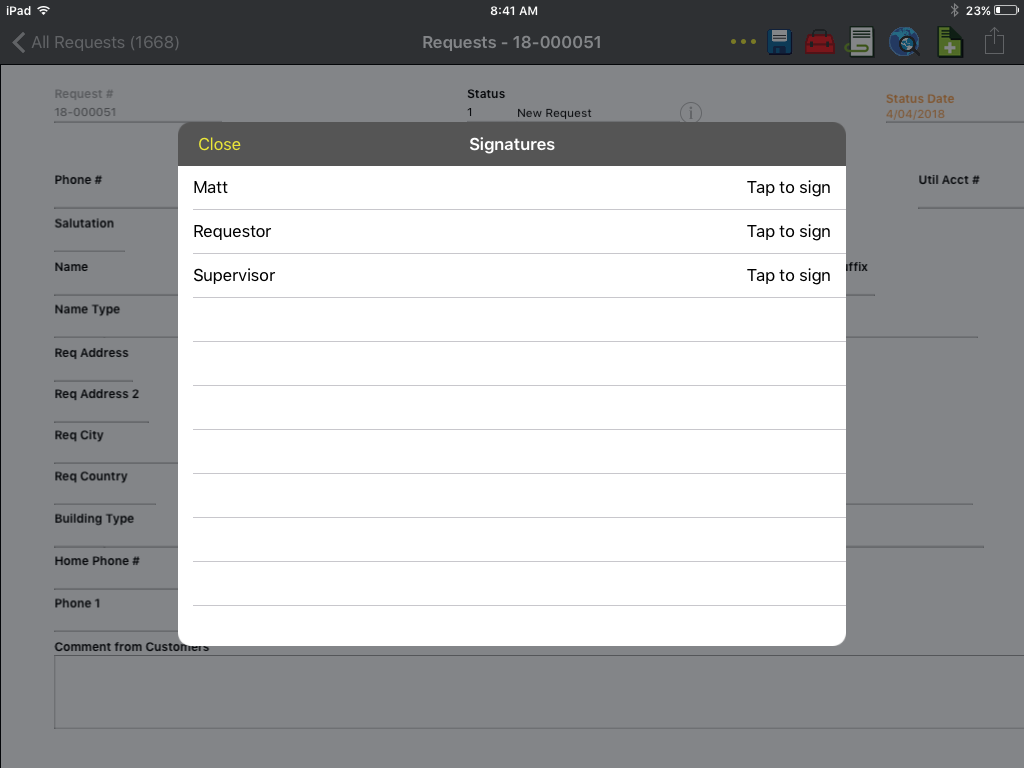
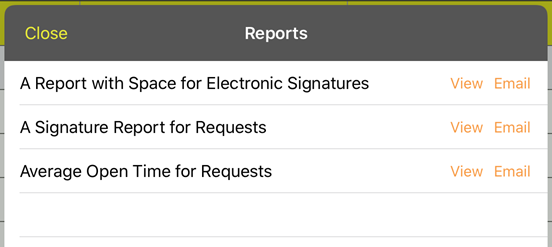
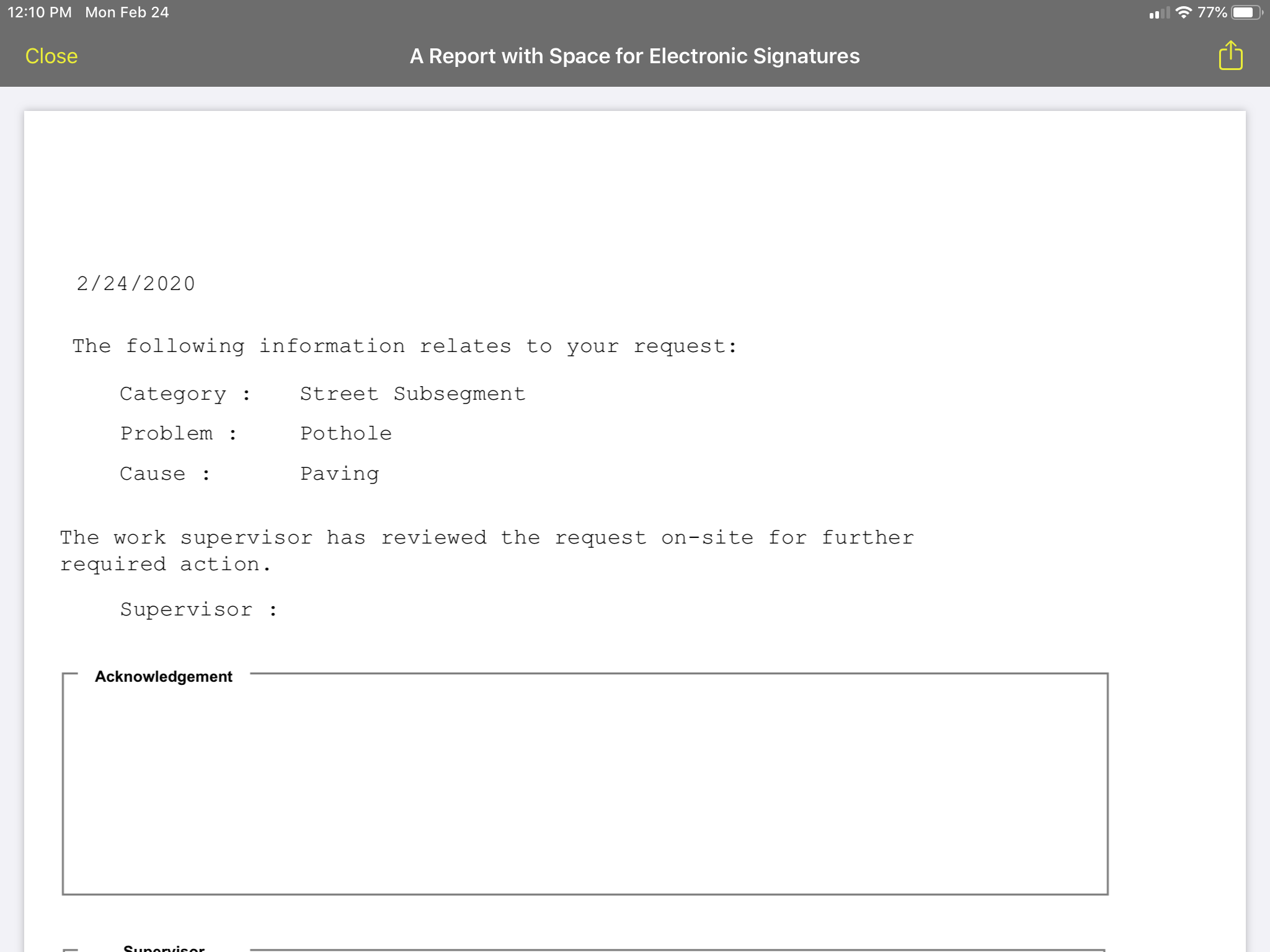
 to view applications outside CS EAM Mobile that can open the document: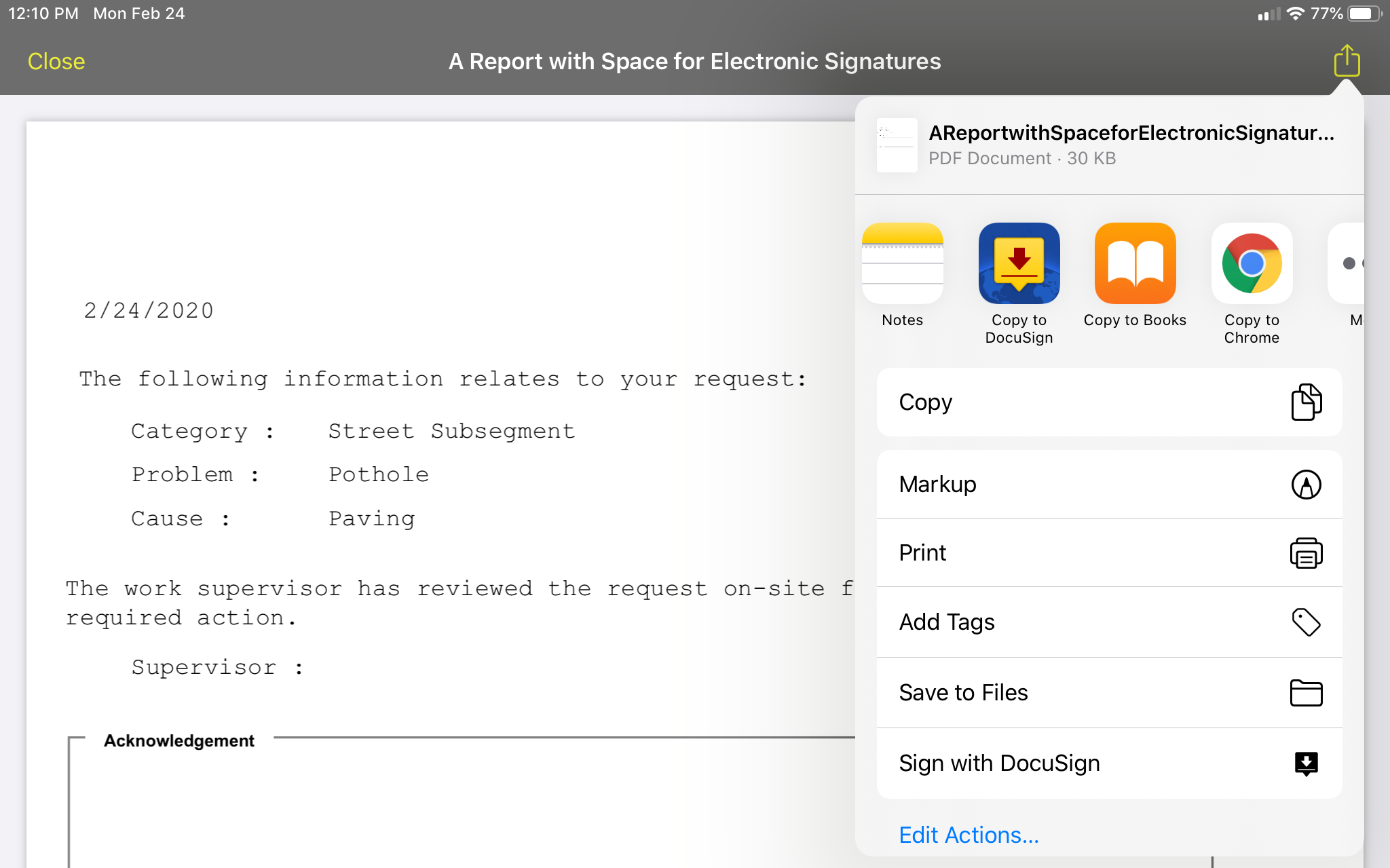
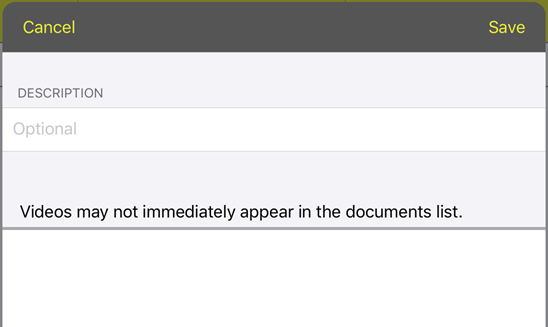
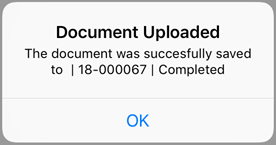
 button.