Menu > Signatures enables you to collect signatures on a record in Lucity. Although these signatures are not legally binding, they provide an informal means for associating approval or authorization with record details.
Note: You can only add signatures to one record at a time.
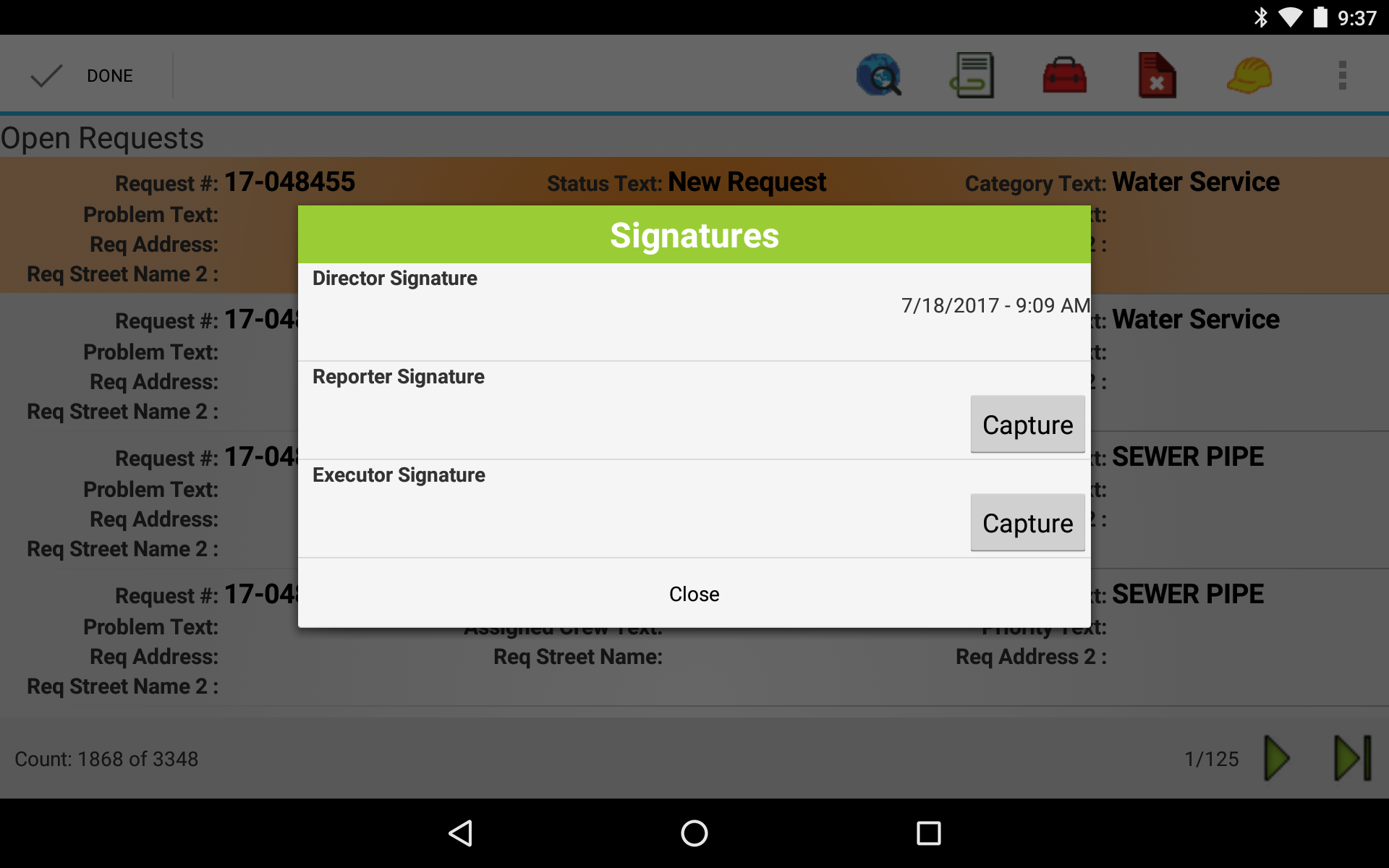
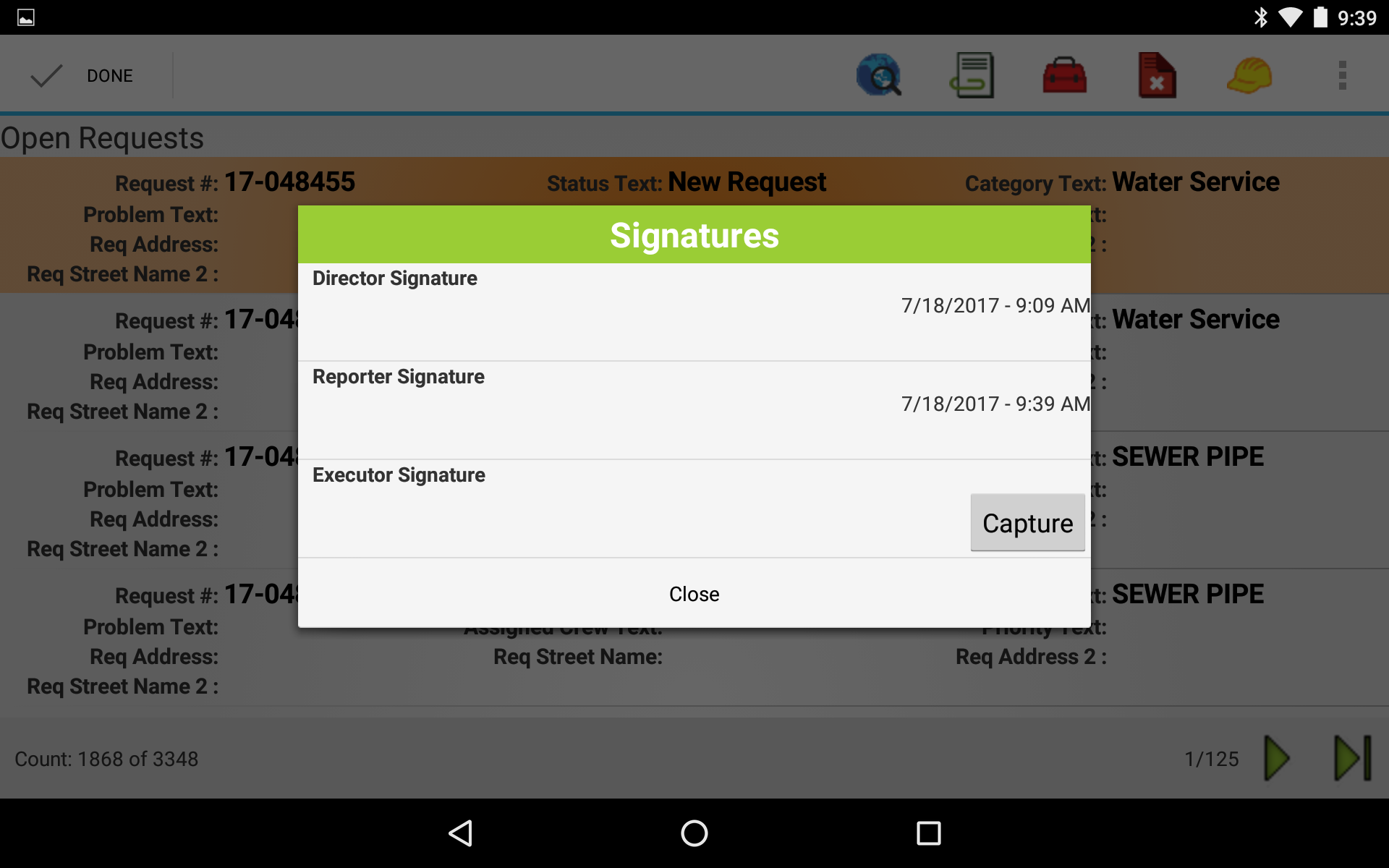
Tap the Menu button and select Signature. The following dialog appears with a list of possible signatures that can be attached to this record:
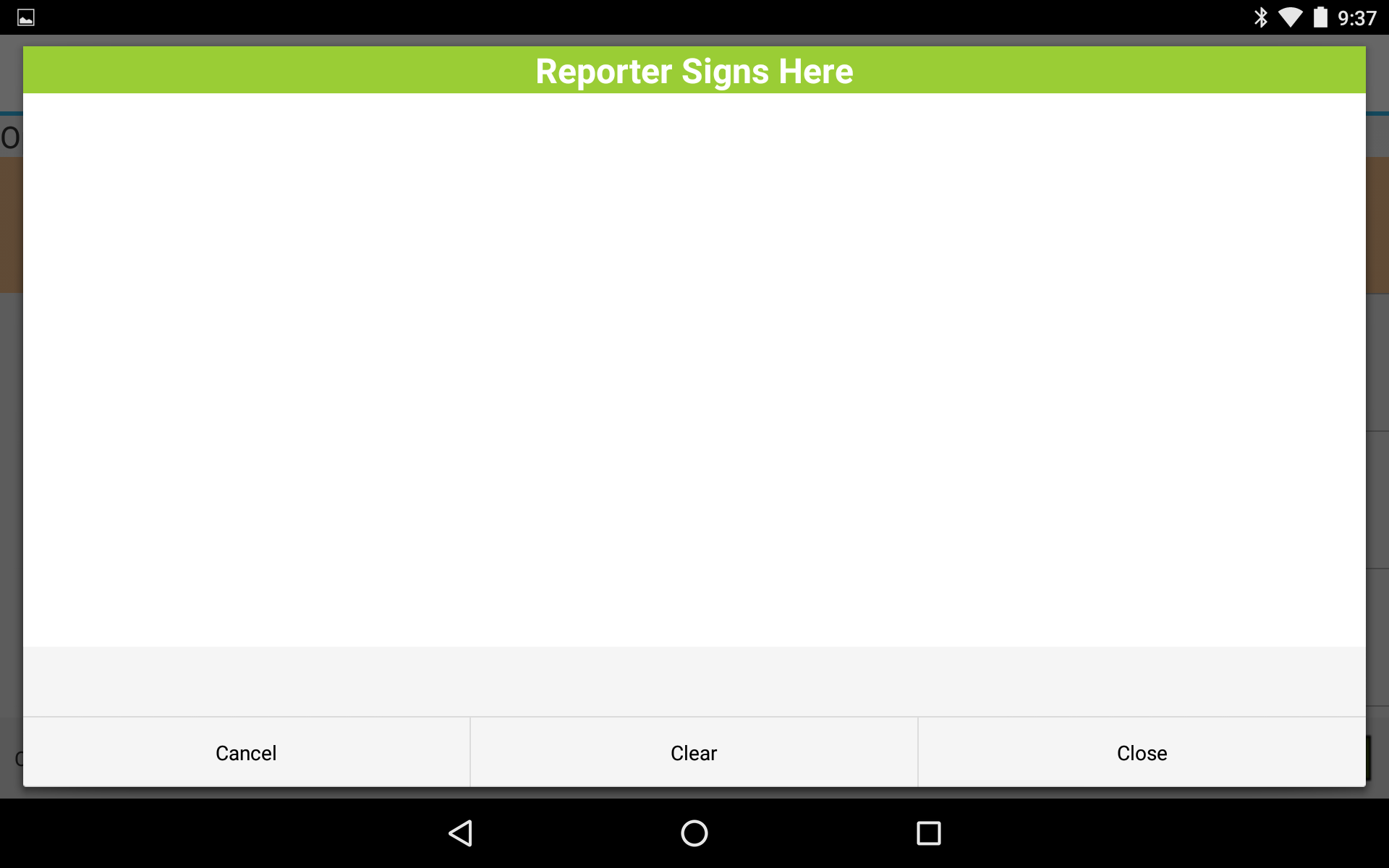
Tap Capture next to the signature that you want to enter. The signature capture window opens:
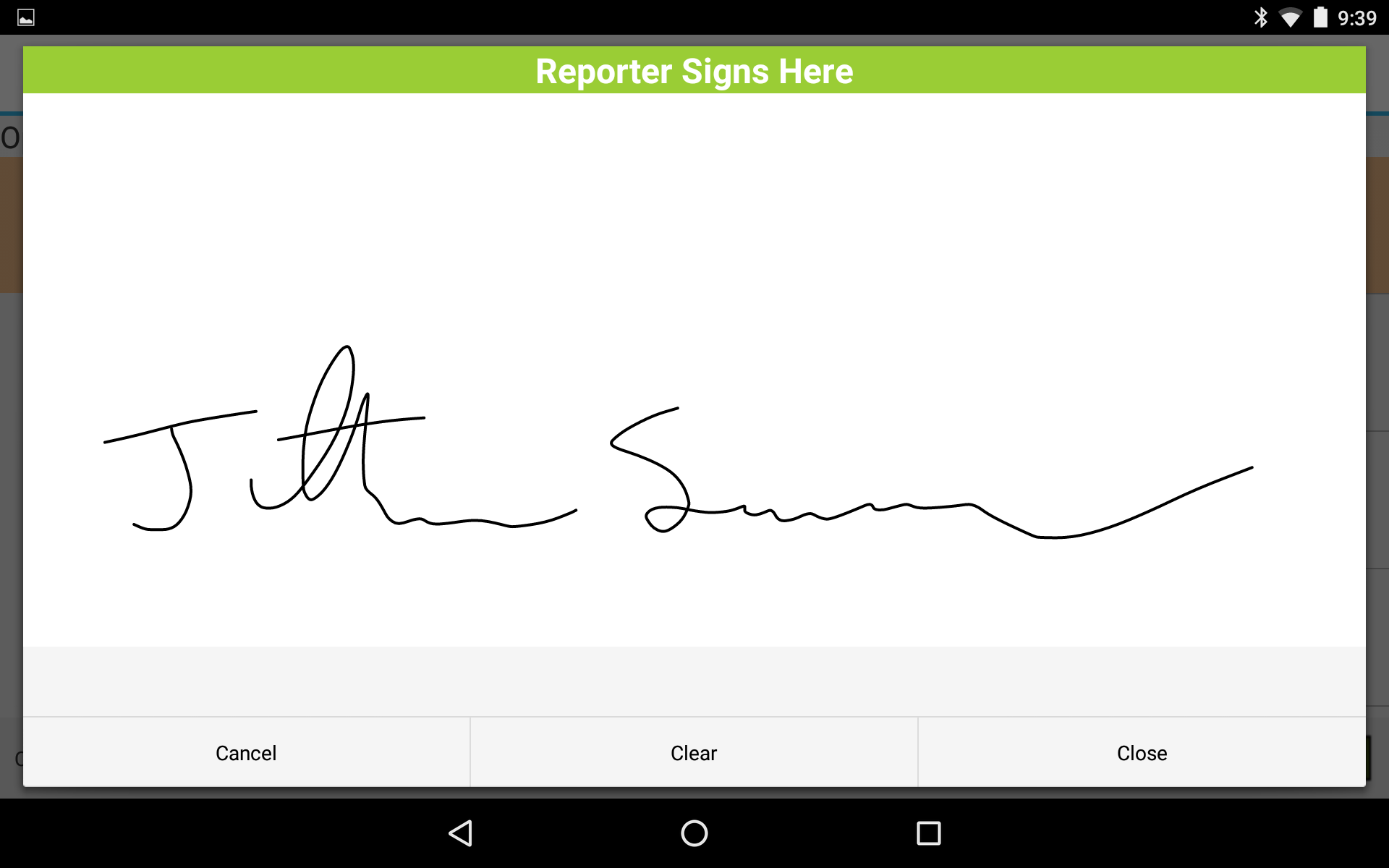
The person giving the signature enters their signature:
Tap Cancel to close the dialog.
Tap Clear to erase the signature.
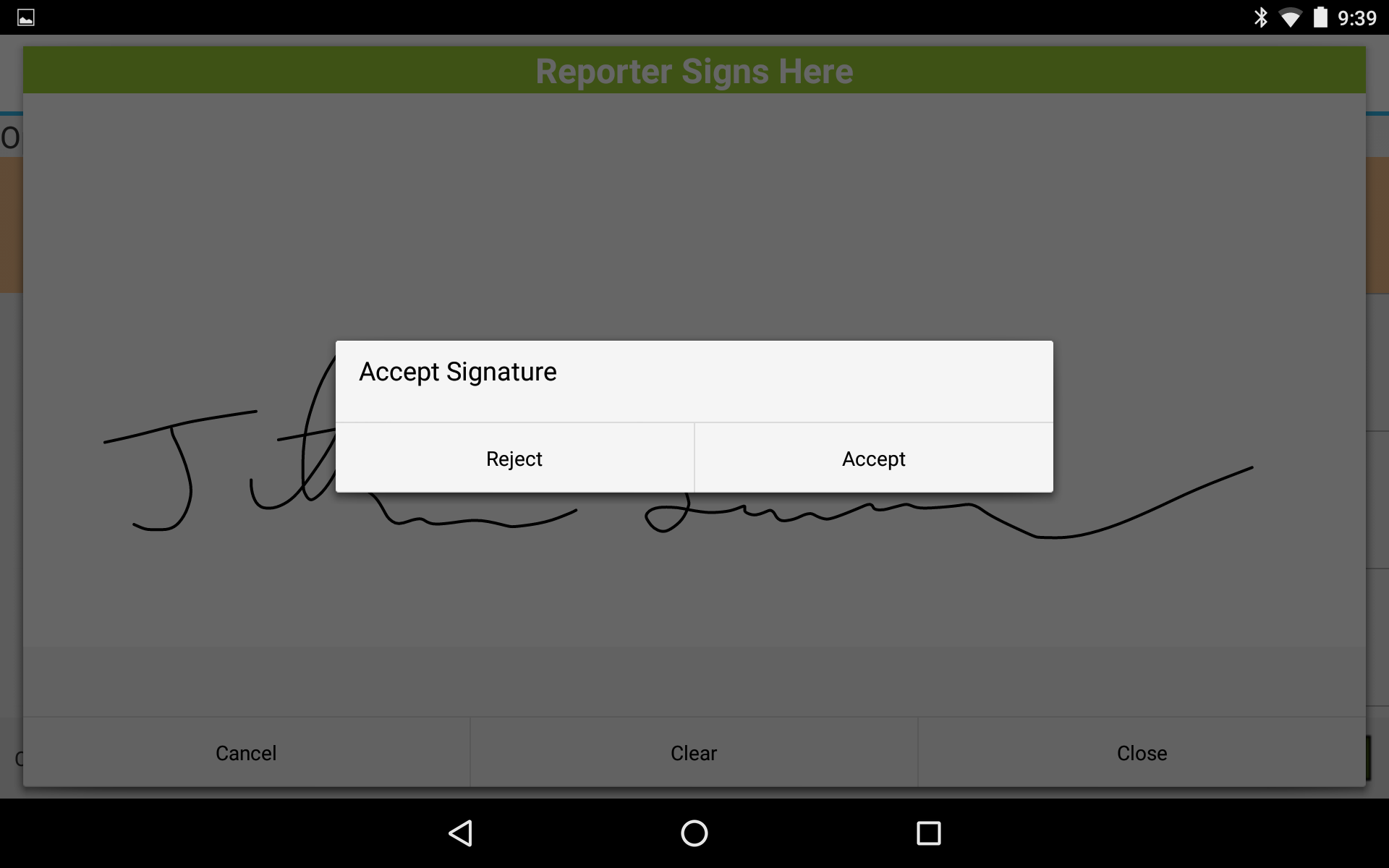
Tap Close to proceed with the signature. The following confirmation dialog appears:
Tap Reject to return to the signature dialog.
Tap Accept to approve the signature. The signature can now be used on any reports for this record containing signatures.
IMPORTANT: The signature will become locked on this record. You cannot edit or delete after you Accept.
Third Party-captured Signatures
Users have the ability to capture signatures on a Lucity record using a third party electronic signature application.
Collecting signatures from a third party application rather than from Lucity entails a different process, beginning with Menu > Reports in Lucity to export a document to the application, then importing that signed form into Lucity Documents.
Important: You must already have a report configured that includes space for collecting signatures.
Note: Reports signed using third party applications are attached to Lucity records as Documents. This is different than the process of attaching Signatures using only Lucity Mobile.
Note: This process could vary from device to device.
Export Signature Document from Lucity Mobile:
Long-tap the record for which you want to add signature(s).
OR
Tap the desired record to open its form.
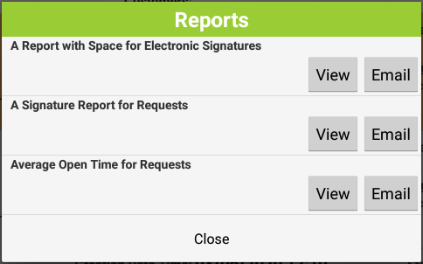
Tap the Menubutton and tap Reports. A list of available reports similar to the following opens:
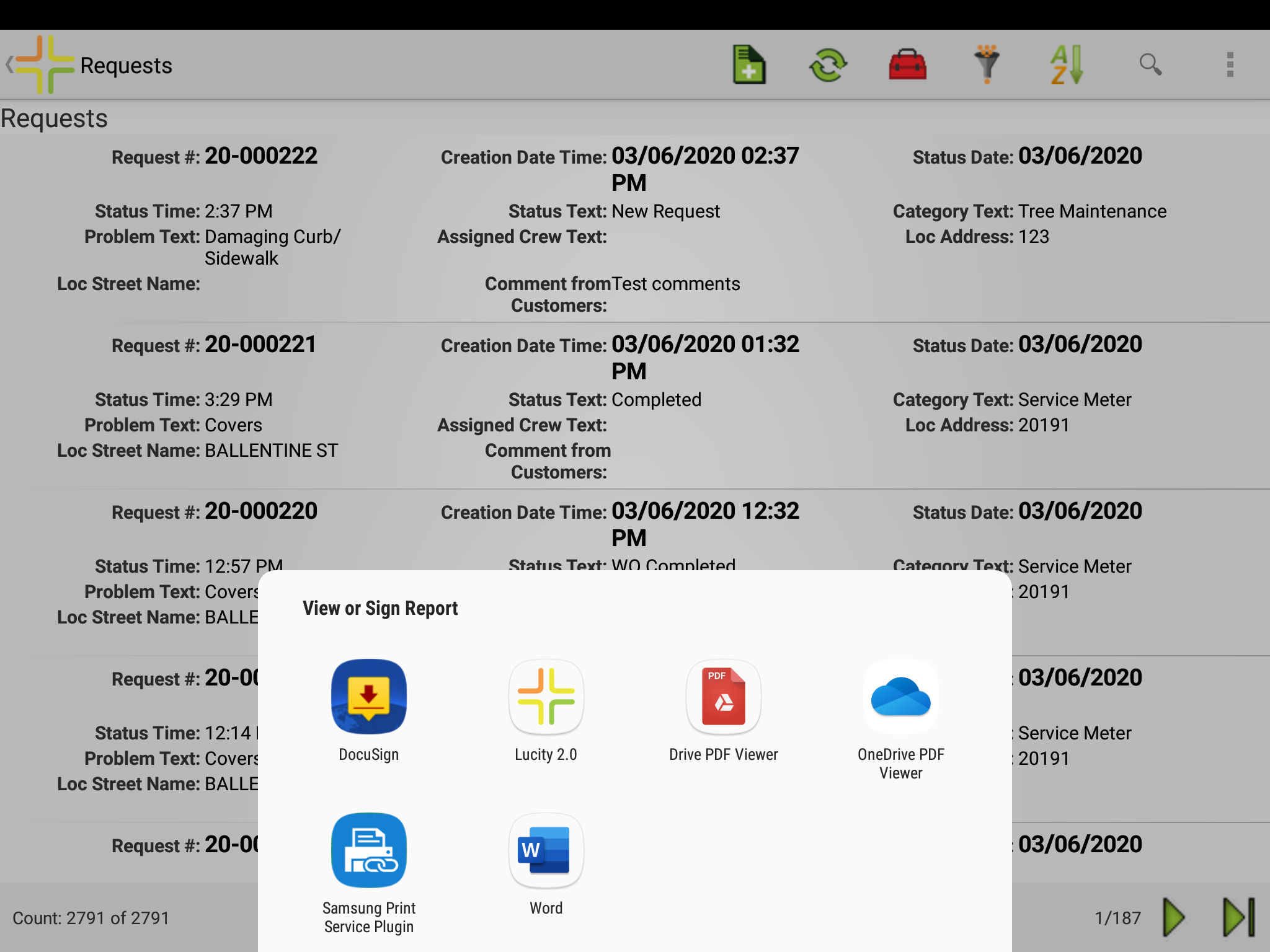
Tap View next to the name of the report to which you want to add signature(s). The application displays options of programs with which to open the selected report:
Use one of the following methods to export your report to a third party signature application:
Export Report Method 1: Preview report in PDF viewer before opening third party application
Tap to select Lucity or another application for PDF viewing to preview the report to which you want to add signature(s). Your report opens.
Tap the Menubutton and tap Send file... or Open with...
Select the desired third party signature application.
Continue to Collect signatures below:
Export Report Method 2: Open report in third party application
Tap to select a third party signature application.
Continue to Collect signatures below:
Collect signatures from third party electronic signature application:
Your report document opens in the selected third party application.
Follow instructions for the third party application to collect signature(s) on the document.
Use the third party application to share or copy the signed document back to Lucity.
Import and attach signed document to a Lucity record:
Your device will open the Lucity Mobile application to a list of recently opened records.
Note: After selecting a file to import from an outside application, Lucity will ask you to select a recently opened record to attach the outside file to. If you have not recently opened the Lucity record to which you will attach the outside file, briefly open and close that record in Lucity before completing the steps below beginning in the outside application.
Tap the desired record to which you want to attach the signed report. Your device may return to the third party application to confirm the document successfully uploaded to Lucity.
Enter a Description (optional).
Tap Ok to proceed. A confirmation appears at the bottom of the screen to confirm "Document Uploaded Successfully".
Your device may return to the third party application. If desired, open Lucity Mobile or Lucity Web and view the file as a attached Document attached to your selected record.
Note: Reports signed using third party applications are attached to Lucity records as Documents. This is different than the process of attaching Signatures using only Lucity Mobile.

 How to use Lucity Mobile to collect signature(s)
  button and select Signature. The following dialog appears with a list of possible signatures that can be attached to this record: