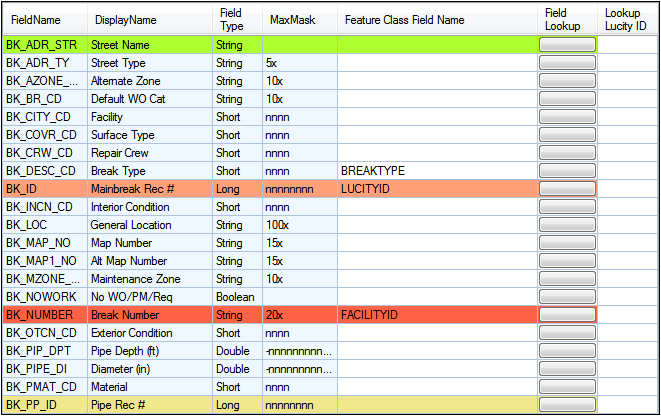
The Fields tab contains a grid that allows administrators to link fields in the Lucity module to feature class layer fields.
Note: GIS fields that link to a Lucity pick-list field can only link to the Code portion of the Lucity field.
Note: Never link ESRI's Shape.Length field to the Lucity length field. These fields are read only and will cause the integration to fail.
Fields
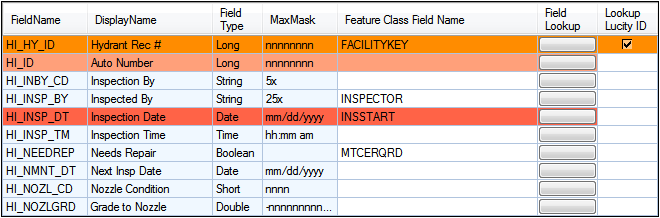
The following images display the types of fields that can be linked.
Column Purposes |
|
FieldName: |
Identifies the field in the Lucity table. |
DisplayName: |
Indicates the field caption for the field as it appears in Lucity. |
Field Type: |
Indicates the type of data stored in the field. |
MaxMask: |
Indicates the data format for the field. A numeric value followed by an "x" indicates the number of characters allowed. An "n" indicates a numerical digit. |
Feature Class Field Name: |
Identifies the corresponding field in the feature class. (This is NOT the alias field name.) |
Field Lookup: |
Provides a button administrators can click to display a list of the feature class fields. Note: If Lucity is unable to connect to the geodatabase, no fields will be listed. |
Import Field |
Allows the data in the GIS Layer to be synced into Lucity. |
Export Field |
Allows the data in the Lucty field to be synced into the GIS Layer. |
Lookup Lucity ID |
Directs the Lucity/GIS integration to look up the Rec # for the asset based on the Common ID provided. This lookup field appears when a feature class layer links to an asset ID in a Lucity Inspection module.
|
Color Coding |
Indicates that the field has special requirements.
|
 How to Link a Feature Class Field to a Lucity Field
|
In This Section |