Inspection Checklist
Each inspection has a checklist that helps users keep track of where they are within the inspection process.
Inspection Checklist Grid
The Inspection Checklist Grid stores the list of checklist items.
- Inspection Checklist Setup templates can be loaded into this grid using the toolkit.
- Items in this grid can be marked as completed using the toolkit.
Grid Tools
 How to add an inspection checklist item
- Select the Inspection Checklist grid and click the
 button.
 - The form will open.
- Fill out the fields as needed.
- Click the
 button to save the record.
How to load a checklist
- Click the
 button and select Load Checklist items from Checklist.
 - The following pop-up will appear:
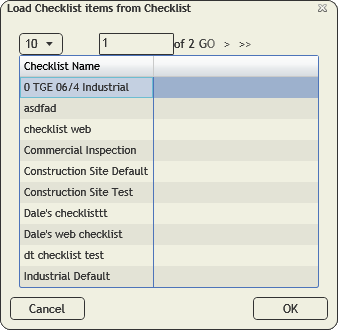
Note: This list will only include checklists that are designed for the module you are currently in.
- Select a checklist.
- Click OK.
How to update the pass code for the filterset
- Click the button and select Populate pass code for current filterset.
- The following prompt will appear with a warning about how many records will be affected:

- Click Yes. The following pop-up will appear:
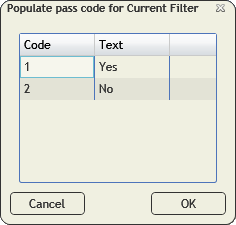
- Select the code you would like to apply to the checklist items in the grid.
- Click OK.
- The Pass field will be updated on all the checklist items.
How to populate the pass code for selected records
- Select one or more checklist items in the grid.
- Click the button and select Populate pass code for selected records.
- The following pop-up will appear:
- Select the code you would like to apply to the selected checklist items.
- Click OK.
- The Pass field will be updated on all the selected checklist items.
How to reorder items in the grid
- Click the button and select ReOrder Items.
- The following pop-up will appear:
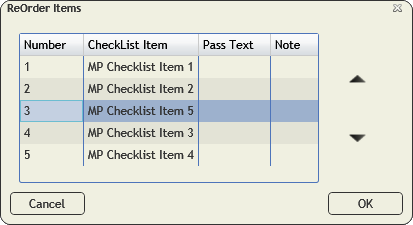
- Select an item in the list and use the arrow buttons to move the item up and down in the list.
- Repeat for any other items that need to be moved.
- Click OK.
- The checklist will reflect the set order.
