The Settings window will appear. More information on connection settings.
Note: If you are configuring a second client tap the button in the top right corner.
Fill out:
Name - The name of this connection configuration. By setting up different configurations and giving each a unique name, users can connect to multiple Lucity clients from a single device.
Host - The path to the web server and a port number (optional). The system automatically assumes that it should use port 80 for http communication and port 443 for https communication. If your agency is using a different port follow the host name with :###. (Example: example.lucity.com:555.)
Scheme - The HTTP scheme used to connect to the application. For TLS users, this will most likely be https.
Rest Application Path - The virtual directory of the Lucity REST application.
After choosing the necessary settings, tap the button.
The Settings window closes, and returns to the client list.
Note: Once a user has logged in, he or she should go to the Settings menu and review the Application and Map settings.
Select CS EAM to launch the application. The Clients list appears.
Select Add in the top-right corner. The Settings screen appears.
Complete the following fields:
Name - Provide a unique identifier for this connection configuration. By setting up different clients and giving each a unique name, users can connect to multiple clients from a single device.
Host - Enter the path to the web server and a port number (optional). The system automatically assumes that it should use port 80 for http communication and port 443 for https communication. If your agency uses a different port, follow the host name with :###. (Example: example.lucity.com:555.)
REST application path - Indicate the virtual directory for the Lucity/CS EAM REST application.
Select Done in the top-righ corner. The Settings window closes and you return to the Clients list.
Select the name of the client you just created. The login screen appears.
 How to install Lucity Mobile for Android
 icon and search for the Lucity Mobile application.
 button in the top right corner.
 button.
 icon and search for the Lucity Mobile application.
 button on the top right corner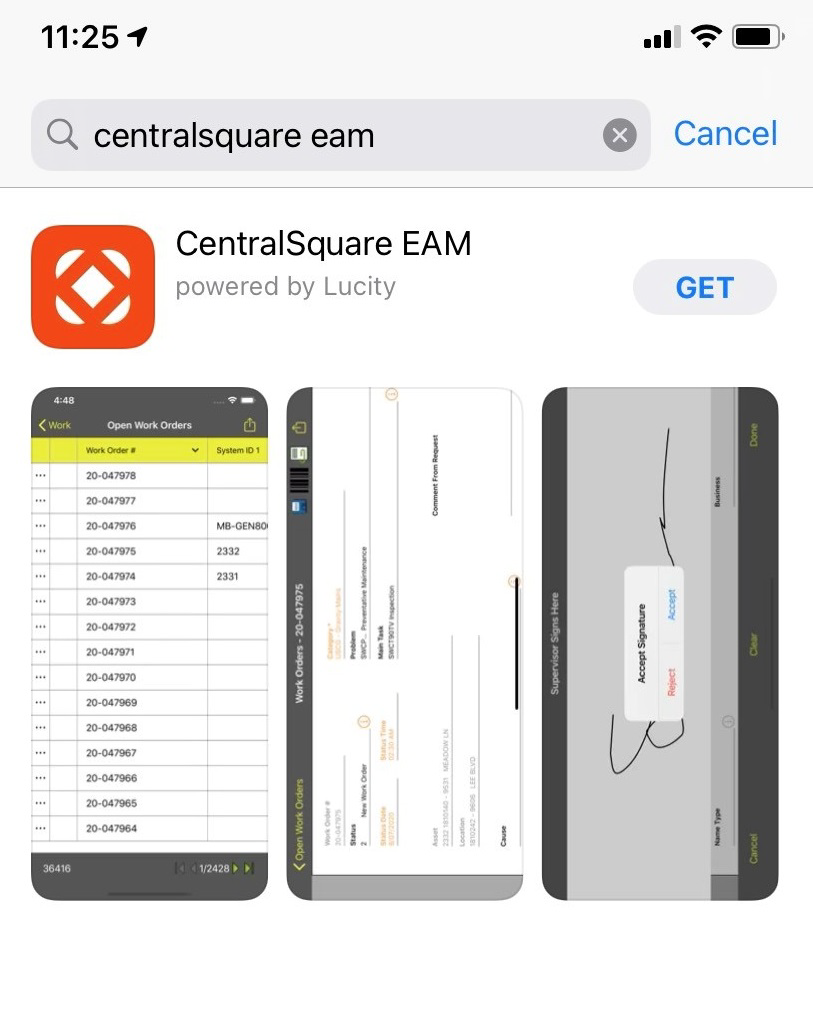
 to launch the application. The Clients list appears.