Auto-sort windows
Lucity is a program made up of a collection of integrated applications called modules. A module is fits into the overall program by providing users a focused view of a specific set of data. For example the Sewer Pipe module shows users the information about sewer pipes and the Sewer Pipe TV Inspection shows users information about TV Inspections for pipes. These two modules are linked together because a TV Inspection is created for a pipe in the Sewer Pipe module. After a sewer pipe is created in the Sewer Pipe module an inspection can be created for it in the Sewer Pipe TV Inspection modules. While these two modules are separate parts of the overall program that provide two separate pieces of information, they are linked together to provide more information.
The modules are accessed by using the main menu bar, or a program toolbar. For more information about using these go here.
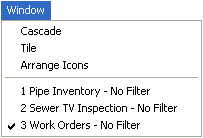
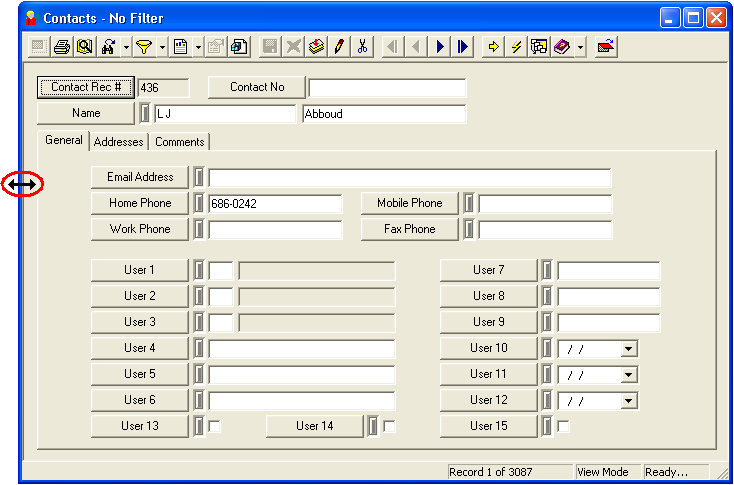
Lucity Desktop allows users to view multiple modules at one time. This allows them to do things like view a work order, and the inventory records for assets on that work order, all at the same time. If the module windows aren't maximized they can be moved around, and resized. The program can auto-sort the windows for the user, and can be pre-configured to auto-sort the windows.
Configure Lucity to automatically sort windows