
The Selection tool allows users to select features in the map. The Select Toolbar appears with the selected features when the tool is used.
|
Rectangle Selection |
Enables users to draw a box in the map and select everything that intersects with that box. |
Selection Toolbar
The Selection Toolbar appears automatically after you use the selection tool. It allows you to decide what you are going to do with your selection.

|
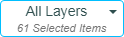
Selection Dropdown |
Displays a list of the layers that have assets in the current selection. Select a layer to run the following tools against the selected features in that layer. |
|
|
Zoom to Selection |
Zooms to the features indicated in the Selection Dropdown. |
|
|
Opens the Data table and displays the GIS Data for the currently selected records. Each layer will be opened in another tab. |
||
|
Open Module View |
Opens the Data table and displays the Lucity Data for the currently selected records. Each layer will be opened in another tab. |
|
|
Displays a list of modules with records related to the selected record in the grid. |
||
|
Enables users to view documents attached to a highlighted feature and/or attach new documents. |
||
|
Enables users to add, edit, and delete Subsets, which are specific groups of records. |
||
|
Creates an Inspection for the currently selected asset. |
||
|
Creates a Request for a highlighted asset. |
||
|
Creates a Work Order for all highlighted assets. |
||
|
Produces a new PM/Template for the selected records or the chosen filterset. |
||
|
Attaches highlighted assets to a existing Work Order. |
||
|
Attaches the selected assets to an existing PM as a PM Asset. |
||
* Only appears when a single asset type is selected.


 Attach to PM/Template