The Document tool lets users view documents that are attached to a record. The tool icon appears only when the user selects a single record in the grid. If the selected record has a document attached, the icon is orange. If no document is attached to the record, the icon is white.
To launch the Document tool, select a record in the grid and click the Document button . A window appears displaying the documents associated with this record:
Documents Tab
The Documents tab lists all documents attached to the selected record and enables users to interact with those documents.
Documents grid
Lists the documents attached to the selected record.
Allows the user to search for a Document.
Click on a column header to sort the records. This icon indicates the column by which the data is sorted.
Add document
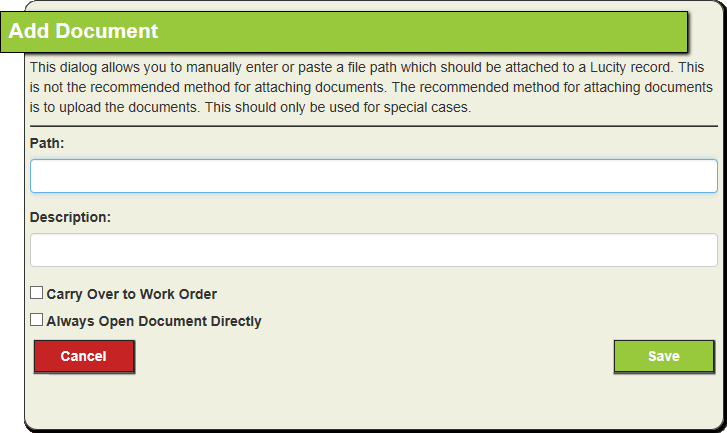
Attaches a document to the selected Lucity record.
Upload document
Uploads a copy of a document to the web server and attaches it to the selected Lucity record.
Open
Opens the selected document using the computer's default program for that type of document.
Information
Displays information about the connection to the document.
Edit
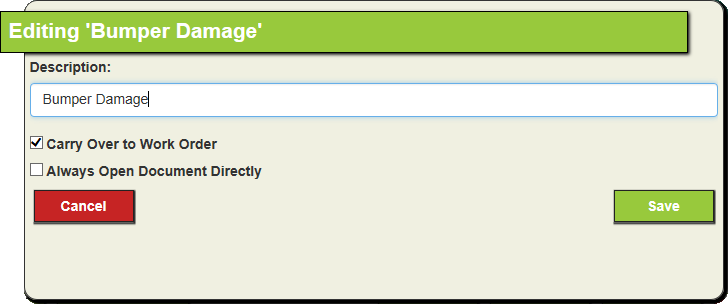
Edits the connection between the Lucity record and the selected document. (This tool does not edit the document itself.)
Delete
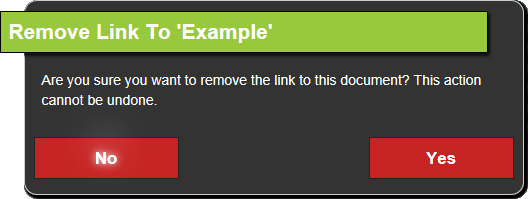
Removes the connection between the Lucity record and the selected document.
If a document was attached from a network location, the file remains there. Although the document's connection to the Lucity record is removed, the file is not deleted from the network.
If a document was uploaded to the web server and attached to the record, the document will be deleted from the web server.
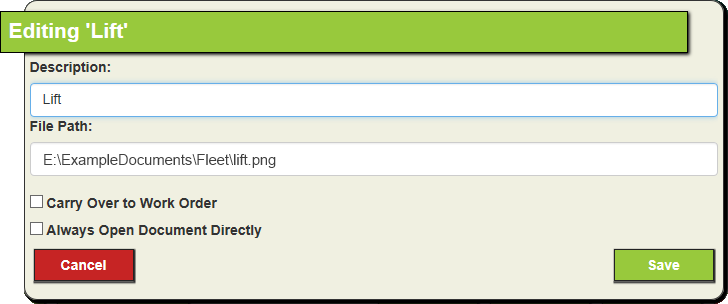
Document Properties
Path
Displays the network path to the document's location.
Description
Explains the nature of the document.
Carry Over to Work Order
When enabled, tells the system to link the document to any Work Orders created for the record associated with the document.
Always Open Document Directly
When disabled, tells the system should display a link to the document location, rather than automatically opening the document. This option is useful for large documents.
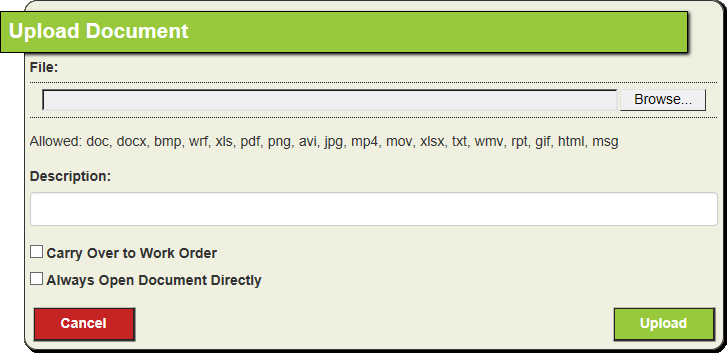
Click the Upload Document icon. The following pop-up appears:
In the File: field, specify the path to the file.
Click the Browse... button to browse to the file path.
Describe the document in the Description field.
Mark the Carry Over to Work Order and Always Open Document Direction options as desired.
Click Upload. The system copies the file and saves the copy to the server location specified by Lucity administrators. This copy is then attached to the Lucity record.
Select a document from the list and click the Open button.
If the document can be opened in the browser, the system launches it in a new browser tab/window.
If the document cannot be opened in the browser, the system launches the computer's default program for the file type.
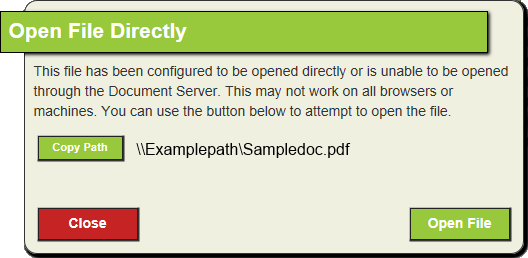
If the Always Open Document Directly option is enabled, or, if the document exceeds the file size limit (set in the system settings), the following pop-up appears:
Click the Copy Path button to copy the path, which can then be pasted into the computer's File Explorer.
OR,
Click the Open File button to attempt to open the file.
Note: Very large files will likely slow the system significantly.
Select a document in the list and click the Delete button.
The following prompt appears:
Click Yes.
If a document was attached through a network location, Lucity deletes the link to the file, but retains the file on the network.
If the file was uploaded to the web server and attached to the record, one of the following actions occurs:
If the user does not have the Images/Movies/Documents - Delete File permission, the link to the file is deleted, but the file remains on the web server.
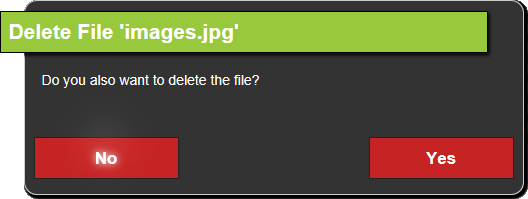
If the user has the Images/Movies/Documents - Delete File permission, the system asks whether the user would like to delete the file on the web server:
Click Yes to remove the link to the document and delete the uploaded file.
Click No to remove the link to the document and leave the uploaded file on the network.
Links tab
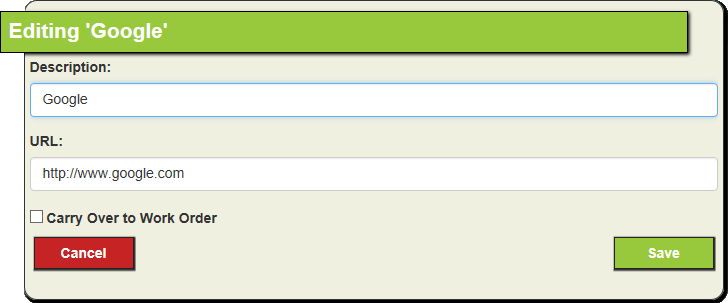
The Links tab lists all of the the web addresses (URLs) attached to the selected record and enables users to interact with those links.
Links grid
Lists the web addresses attached to the selected record.
Allows the user to search for a Link.
Click on a column header to sort the records. This icon indicates the column by which the data is sorted.
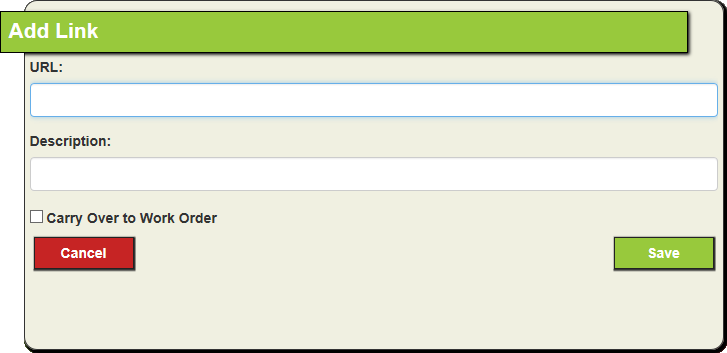
Add Link
Attaches a web address to the selected Lucity record.
Open
Launches the selected link in a new tab within the current web browser.
Edit
Enables the user to modify the connection between the Lucity record and the selected link.
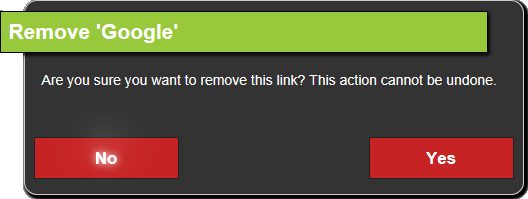
Delete
Removes the connection between the Lucity record and the selected link.
Document Properties
URL
Specifies the URL for the desired website.
Description
Describes the nature of the site or link.
Carry Over to Work Order
Indicates whether the system should assign the link to any Work Orders created for the associated asset.


 . A window appears displaying the documents associated with this record: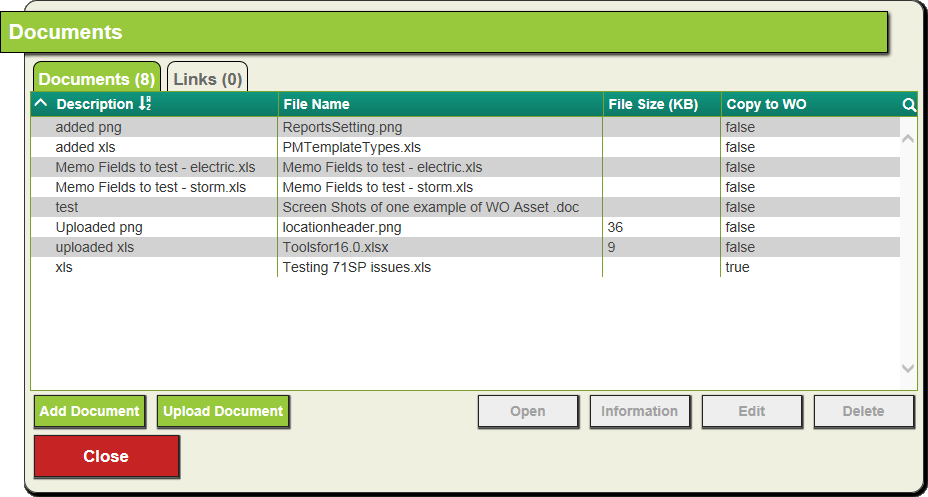
 How to edit document's connection properties
 Allows the user to search for a Document.
 Click on a column header to sort the records. This icon indicates the column by which the data is sorted.