Toolkit

The Municipal Inventory grid contains the following Toolkits.
Notification Update for Current Filter
Updates all municipal site records in the current filterset with the following notification information.
- Updates the Notification and Notification Date fields.
- Adds a record to the Notifications grid.
- Adds a record to the Tracking grid.
 How to run a Notification Update for the current filterset
Notification Update for Selected Records
Updates all municipal site records in the current filterset with the following notification information.
- Updates the Notification and Notification Date fields.
- Adds a record to the Notifications grid.
- Adds a record to the Tracking grid.
How to run a Notification Update for selected records
- Select one or more municipal site records in the grid.
- Click the
 button and select Notification Update for Selected Records.
 - The following pop-up will appear:
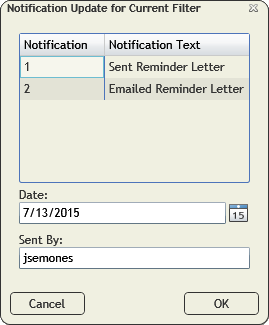
- Select a Notification type from the list.
- Enter a Date.
- Update the Sent By field if needed.
- Click OK.
Send BMP Contact Email Notification for Current Filter
Sends out an email notification to the primary contact for all the municipal sites in the current filterset.
- Uses the Contact Email as the recipient for the notification email.
- Adds a record to the Tracking grid.
How to send a Contact email for the current filterset
- Use the
 tool to create a filter for the records you want to update.
 - Click the button and select Send Contact Email Notification for Current Filterset.
- The following prompt will appear with a warning about how many records will be affected:

- Click Yes. The following pop-up will appear:
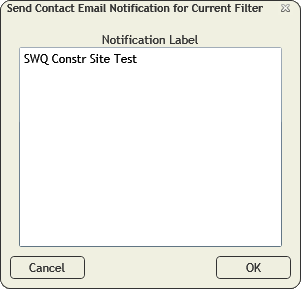
- Select a notification from the list.
Note: These notification templates come from the Notification Setup module.
- Click OK.
- The notification will be sent out to the Contact Email address on each site in the filterset.
Send BMP Contact Email Notification for Selected Records
Sends out an email notification to the contacts for the currently selected municipal site(s).
- Uses the Contact Email as the recipient for the notification email.
- Adds a record to the Tracking grid.
How to send a contact email for selected records
- Select one or more municipal site records in the grid.
- Click the button and select Send Contact Email Notification for Selected Records.
- The following pop-up will appear:
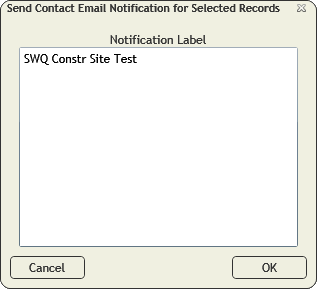
- Select a notification from the list.
Note: These notification templates come from the Notification Setup module.
- Click OK.
- The notification will be sent out to the Contact Email address on each selected site.
Send Owner Email Notificaiton for Current Filter
Sends out an email notification to the Owners for all the municipal sites in the current filterset.
- Uses the Owner Email as the recipient for the notification email.
- Adds a record to the Tracking grid.
How to send an owner email for the current filterset
- Use thetool to create a filter for the records you want to update.
- Click the button and select Send Owner Email Notification for Current Filterset.
- The following prompt will appear with a warning about how many records will be affected:
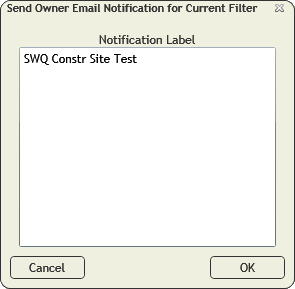
- Click Yes. The following pop-up will appear:
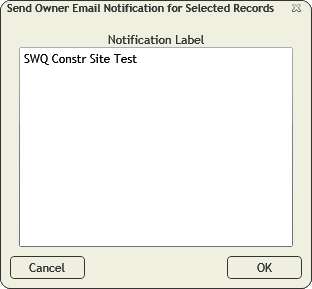
- Select a notification from the list.
Note: These notification templates come from the Notification Setup module.
- Click OK.
- The notification will be sent out to the Owner Email address on each site in the filterset.
Send Owner Email Notification for Selected Records
Sends out an email notification to the Owners for all the currently selected municipal sites.
- Uses the Owner Email as the recipient for the notification email.
- Adds a record to the Tracking grid.
How to send an Owner email for selected records
- Select one or more records that you would like to update.
- Click the button and select Send Owner Email Notification for Selected Records.
- The following pop-up will appear:
- Select a notification from the list.
Note: These notification templates come from the Notification Setup module.
- Click OK.
- The notification will be sent out to the Owner Email address on each currently selected site.