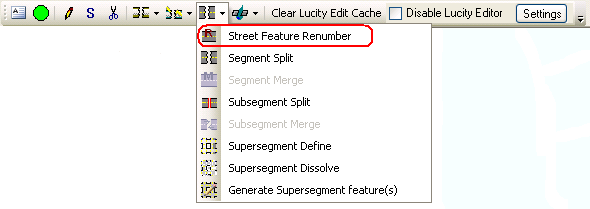
The Lucity GIS Edit toolbar includes a Street Feature Renumber tool that enables users to renumber street assets. Because Lucity identifies such assets by Facility ID, users must use this special tool to renumber a Street Segment, Intersection, Structure, Pole, or Light in the map and in the Lucity database.
Note: The Street Feature Renumber tool is only enabled if a single feature is selected in the map.
Supported Modules
Bridges
ITS Anti-Icing Equipment
ITS Anti-Icing Pump Houses
ITS Automated Gates
ITS Camera Location
ITS Dynamic Message Sign
ITS Kiosk
ITS Portable Dynamic Message Sign
ITS Sensor
ITS Weather Station
Mast Arms
ROW Bus Stops
ROW Curbs
ROW Fences
ROW Guardrails
ROW Medians
ROW Pavement Markings
ROW Railroad Crossings
ROW Sidewalks
ROW Steps
ROW Walls
Sign Inventory
Signal Controllers
Signal Heads
Auxiliary Equipment
Cabinets
Conductors
Conduits
Fiberoptic
Furniture
Intersections
Junction Boxes
Landscape Areas
Lights
Light Circuits
Light Controllers
Main Lines
Meter Boxes
Parking Lot
Parking Stalls
Poles
Preempt Signals
Ramp
Road
Road Asset
Road Attribute
Road Ramp
Road Segment
Signals
Snowshoes
Street Segments
Structures
Traffic Detectors
Trails
How To Renumber a Feature
Start an edit session in ArcMap.
Select a Street Feature in the map.
Click the Street Feature Renumber tool on the Lucity GIS Edit toolbar.
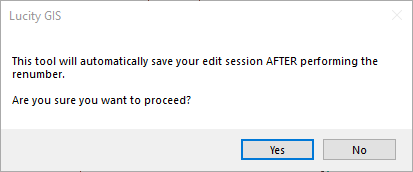
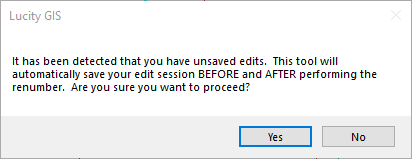
The Street Feature Renumber tool requires the system to save edits before and after the feature is renumbered. Therefore, a message similar one of these appears:
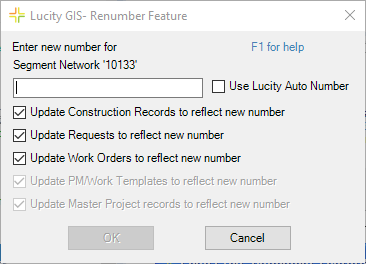
Click Yes. The following dialog appears:
Enter a new number or check the Use Lucity Auto Number box if the layer has a number generator configured and you would like the number to generate automatically.
If any of the listed records types should not be updated with the new number uncheck the appropriate box.
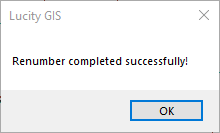
Click OK. The following message appears when the process is complete:
The feature's Facility ID is updated, as well as any related features. For example, if the feature is an Intersection, the Intersection Number will change in the geodatabase and in Lucity. If that Intersection is attached to Street Segments, those Segments will be updated, as well.
 The Lucity GIS Edit toolbar includes a Street Feature Renumber tool that enables users to renumber street assets. Because Lucity identifies such assets by Facility ID, users must use this special tool to renumber a Street Segment, Intersection, Structure, Pole, or Light in the map and in the Lucity database.