The Lucity GIS Edit toolbar includes a Sewer Renumber tool for changing the Facility ID number for Sewer assets. This tool changes the number in the GIS feature class and the Lucity module simultaneously. Because Lucity identifies such assets by Facility ID, users must use this special tool to renumber an asset in the map and in the Lucity database.
If users change a Facility ID in ArcMap using another method, Lucity thinks a new feature has been created. The result is a feature in Lucity with the old number that links to any related records and a new feature that is linked to the map.
Note: The Sewer Renumber tool is enabled only if a single feature is selected in the map.
Supported Modules
Sewer Structures
Pump Stations
Service Laterals
Pipes
FOG Facility
FOG Extractor
IPT Facility
IPT Monitoring Point
Service Connections
Pipes
Structures
How To Renumber a Feature:
Start an edit session in ArcMap.
Select a Sewer feature in the map.
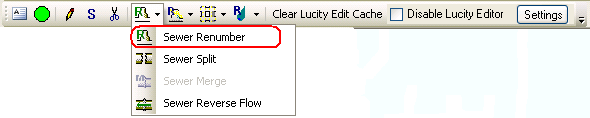
Click the Sewer Renumber tool on the Lucity GIS Edit toolbar.
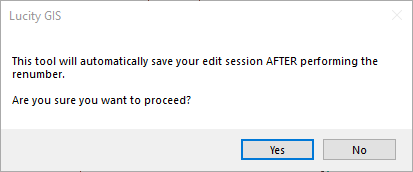
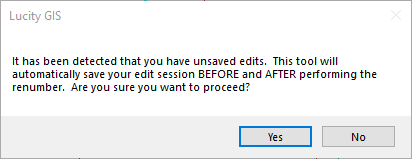
The Sewer Renumber tool requires the system to save edits before and after renumbering the asset. Therefore, messages similar to the following will appear:
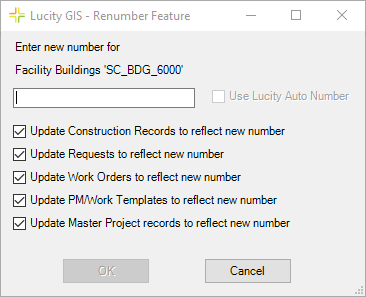
Click Yes. The following dialog appears:
Enter a new number or check the Use Lucity Auto Number box if the layer has a number generator configured and you would like the number to generate automatically.
If any of the listed records types should not be updated with the new number uncheck the appropriate box.
Click OK. The following message appears when the process is finished:
The feature's Facility ID is updated as well as any related features. For example, if the feature is a Sewer Structure, the Structure Number will change in the geodatabase and in Lucity. If the structure is the Upstream or Downstream Structure for any Pipes, the Pipes are updated, as well.
 The Lucity GIS Edit toolbar includes a Sewer Renumber tool for changing the Facility ID number for Sewer assets. This tool changes the number in the GIS feature class and the Lucity module simultaneously. Because Lucity identifies such assets by Facility ID, users must use this special tool to renumber an asset in the map and in the Lucity database.