Lucity has a wide range of permissions. Permissions are assigned to Groups. Any of these permissions can either be Granted, Denied, or Neither. Users' permissions are inherited from the groups to which they belong.
Permission Control Buttons
<< Grant
Grants the Permissions selected on the right to the Group(s) selected on the left.
<< Remove
Removes a Grant or Deny permission already applied to the selected Permission from the selected Group(s).
<< Deny
Explicitly prevents the selected Permissions from being granted to the selected Group(s).
Permission States
Grant
The group may access this function.
Granted
The permission appears in the Assigned Permissions list with the Key icon.
Deny
The group cannot access this function.
A Deny setting overrules a Grant setting when a user is a member of two or more groups. That is, if a user belongs to one group that is denied access to a module function, and belongs to another group that is granted access to that function, he will be denied access.
Denied
The permission appears in the Assigned Permission list with the Lock icon.
Neither
Users in the group do not have access to this function; however, if a user is also assigned to another group that does have access to the function, the user can use that function.
No permission specified
The permission does not appear in the Assigned Permission list.
The Question Mark icon appears next to a module name if a group has some permissions for the module, but does not have the Run permission for it.
Examples
User A is is a member of two groups with settings for the Work Order Standard module's Run permission. The chart below illustrates how permissions would be applied to the user in three possible permission scenarios:
In the Groups grid select one or more groups from which to remove a permission.
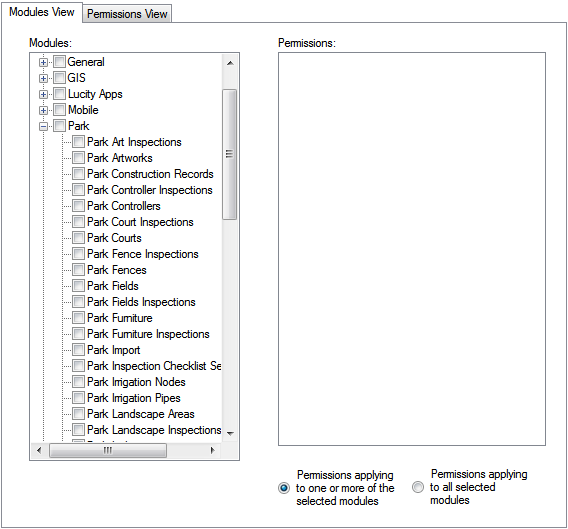
On the Modules View tab under Permission Controls, expand the module suite from which permissions should be removed.
Check the box next to the desired modules within the suite.
Note: To remove all permissions in the Park suite for a group, check the box next to Park. The system will check all modules underneath the root.
Select one or more permissions in the Permissions grid.
Note: Hold down theShift or Ctrl keys while clicking to select multiple items.
When all desired permissions are selected, click the << Remove button. The system removes the selected permissions from the selected group(s).
Permissions View Method
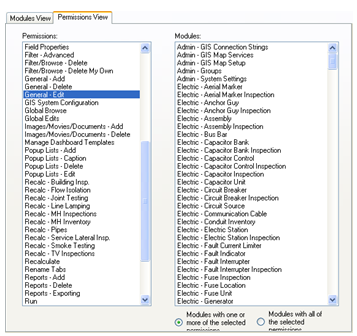
To remove a permission—like the General-Edit permission—applied to multiple modules in the Lucity program, select a group(s) in the Groups grid.
Open the Permissions View tab.
Select the desired Permission from the grid on the left.
Select the Modules from which to remove this permission and click the << Remove button. The system removes the permission(s) from the selected group(s).
Note: Hold down theShift or Ctrl keys while clicking to select multiple items.
In the Groups grid, select one or more groups to which to deny a permission.
In the Modules View tab, under Permission Controls, expand the module suite for which the permissions will be denied.
Check the box next to the desired modules within the suite.
Note: To deny a group all of the permissions in the Park suite, check the box next to Park. The system will check all modules underneath the root.
Select one or more permissions in the Permissions grid.
Note: Hold down theShift or Ctrl keys while clicking to select multiple items.
When all desired permissions are selected, click the << Deny button. The system denies the selected permissions from the selected group(s).
Permissions View Method
To deny a particular permission—like the General-Edit permission—across multiple modules in the Lucity program, select a group(s) within the Groups grid.
Open the Permissions View tab.
Select the desired Permission from the grid on the left.
Select the Modules to which to deny the permission and click the << Deny button. The system denies the permission(s) from the selected group(s).
Note: Hold down theShift or Ctrl keys while clicking to select multiple items.

 How To Grant Permissions to Groups

 s
s