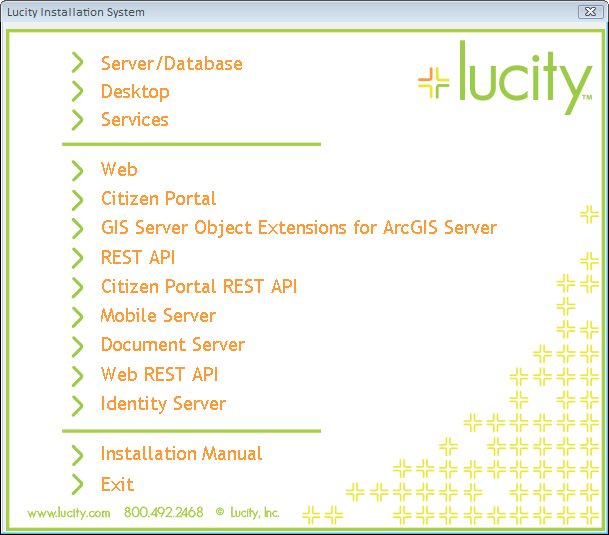
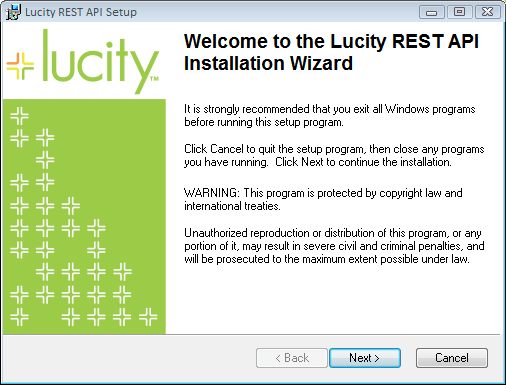
 to continue. The Database Connection Information dialog appears: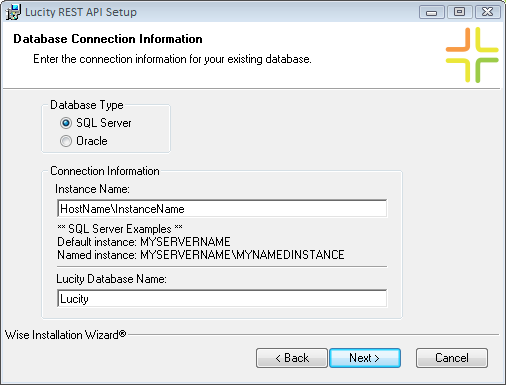
- SQL Server Users: Enter the Instance Name and User Database Name (GBAUser). The latter must be the user database; change the name if using something other than GBAUser.
- Oracle Users: Enter the Instance Name, Host Name, and Port.
to continue. The Existing Site dialog appears:
Note: This screen appears only if more than one site is defined in IIS.
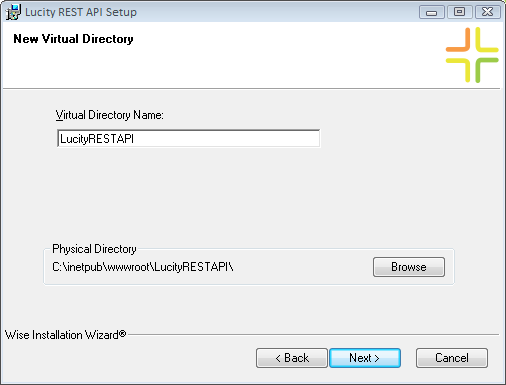
to continue. The Virtual Directory dialog appears:- Lucity recommends using the default settings. The Physical Directory defaults to the root of the existing web site.
to continue. The SSL Option dialog appears:
Note: If this option is enabled and an administrator does not complete the required SSL configuration process in IIS, the REST API will not run properly.
to continue. The Web Gateway User dialog appears: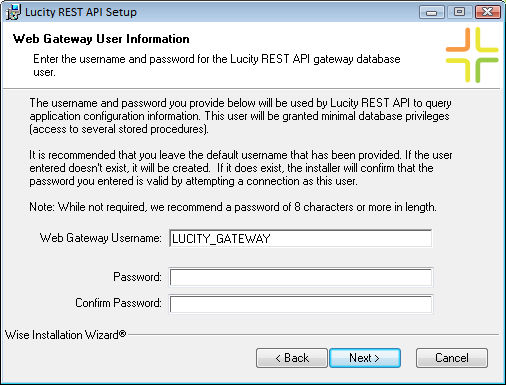
Consider the following when creating a Username:
- Lucity recommends using the default Username provided.
- If you choose to use a different Username, it should not be that of an administrative user or any existing Lucity user. If you enter a Username that is disallowed, you'll be prompted to enter an alternative Username.
Consider the following when creating a Password:
- If the Username entered already exists, the installation will verify the Password by attempting to connect to the database as this user.
- Lucity recommends a password of at least eight characters for new accounts.
Note: By default, SQL Server 2005 or higher enforces an agency's local or domain password policy when evaluating passwords for database users. If you are using SQL Server 2005 or higher, please ensure that the password you choose meets your organization's password policy.
to continue. The Database Administrator Login dialog appears: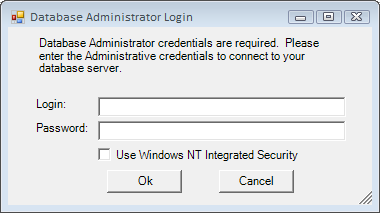
DBA credentials are required to create or update the specified user account. Enter the following information according to your database type:
- SQL Server Users: Provide system administrator credentials or those of some other database administrator.
- Oracle Users: Enter the gba_admin account or another database administrator account.
Note: If the credentials entered aren't sufficient, an error message will detail the possible problems.
 to continue. The Ready dialog appears: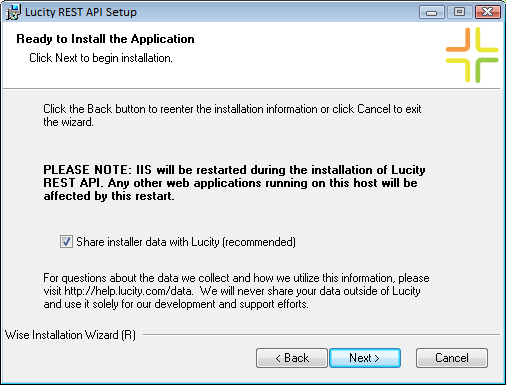
Note: IIS will be restarted during the installation.
Note: It may take up to one minute to create the virtual directory, depending on the speed of the web server. Please wait for this process to be completed.
to begin the installation. This process may take a few minutes. The following window appears when the installation is complete: 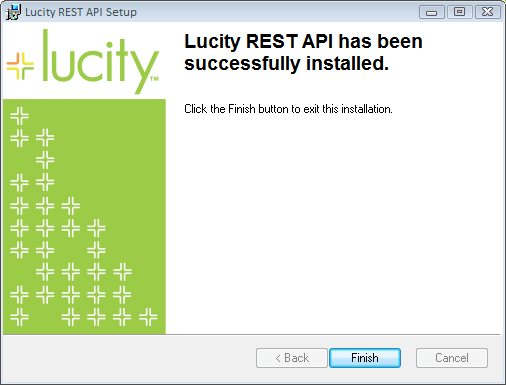
Note: This installation creates a WebTaskRunner process that handles various background tasks for the application.