Configuring the Webmap-Editing-to-Lucity integration provides a way to push GIS edits from an editing environment other than ArcMap into Lucity.
Process
Inventory Edits
Edits made in the Webmap are made to a feature service that automatically updates the geodatabase. Such edits are not automatically pushed to Lucity; instead, they must be pushed to the Lucity database using a GIS Task.
The GIS Task runs on a schedule. It checks the feature service for new or updated records, which are then processed and pushed into the Lucity database.
Possible Applications
The process can be used to push data from:
Lucity Webmap > Lucity
Lucity Mobile Map > Lucity
Collector for ArcGIS > Lucity
Any other third-party mapping application > Lucity
Setup
Feature Service
The configuration for the Webmap-Editing-to-Lucity integration uses the same feature service (or alternate feature service) set up to complete theLucity-to-Geodatabase configuration.
Allowing users to edit a feature service also permits them to edit any feature classes in that feature service. Therefore, when configuring Webmap editing, it is typical to use multiple feature services, each containing a set of data. For example, an agency might have a Sewer-feature editing service that contains sewer pipes, structures, and nodes, but omits Storm features. Configuring the services in this way gives administrators flexibility and enables them to provide one set of editable data in one map and a different set in another.
Note that when this method is used, each service should be configured as an Alternate Feature Service.
Create the feature service using ArcMap. Keep in mind:
The map service must contain the feature classes that you want it to update in the geodatabase.
The feature classes must display all of the fields that are configured to link to Lucity.
The map service does not need any additional non-Lucity feature classes.
You can either use a new map service, or an existing one.
The map service does not require any special symbology.
The user account used to add the data to the map service must have edit permissions for the feature classes that Lucity will update in the geodatabase.
The map service must point to the version of the geodatabase that Lucity should update.
Right-click on a configured connection (on the left side of the Geodatabase Configuration tool) and select Update Feature Class Services.
GIS Scheduled Task
The second part of the integration involves creating the GIS Scheduled Task that regularly updates Lucity with new GIS data. GIS Scheduled Tasks are set up in the Geodatabase Configuration tool.
After creating a GIS Scheduled Task for one feature class, an administrator can copy the task and use it for other feature classes that should be synced to Lucity on a similar schedule.
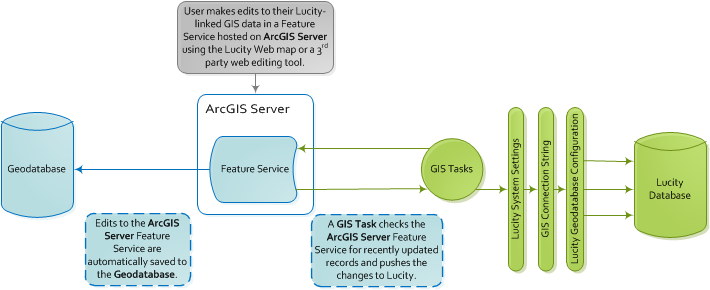
 How to configure an editing feature service
 Users need Lucity App Admin > Run permission to access this section of the Lucity Administration tool.