Spatial Relationships
The Spatial Relationships section updates features based on their location relative to other features to aid general editing and maintaining these relationships. These are used to speed up filling out information when adding new features. It is most often used to update a child record with a parent record's ID number.
For example, Spatial Relationships can update Playground Equipment with the Park ID. The Spatial Relationship can update any fields whether or not they are linked to EAM Web, and can use non-EAM feature classes to update EAM feature classes.
 Requires the GIS > GIS Setup Spatial Relate > Run Security permission to view this section.
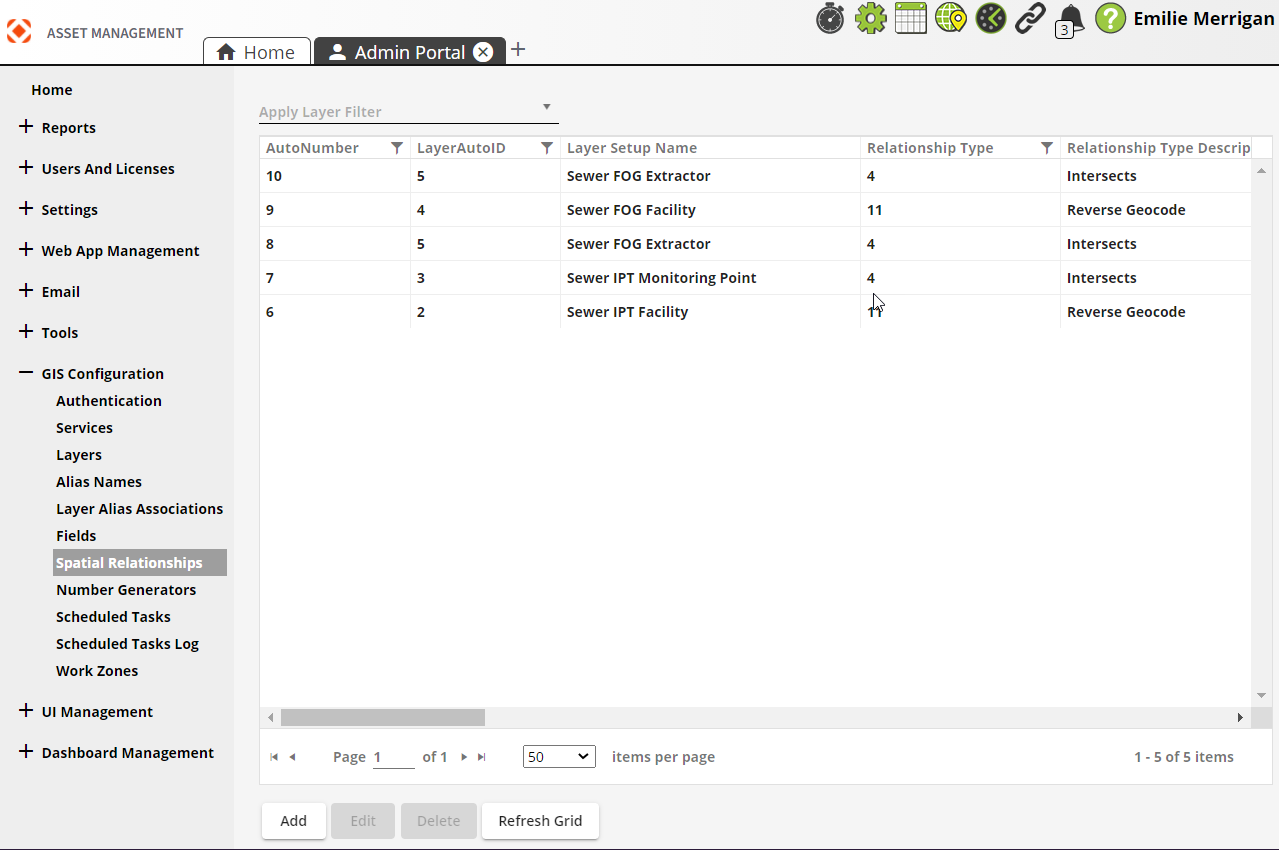
|
Buttons |
Description |
|
|
Adds a new spatial relationship. |
|
|
Opens a selected spatial relationship for editing. |
|
|
Deletes a selected spatial relationship. |
|
|
Refreshes the current grid. |
 How to add a Spatial Relationship-result?
- Open
 .
. - In the menu on the left select GIS Configuration > Spatial Relationships.
-
Select Add at the bottom. The following popup appears:
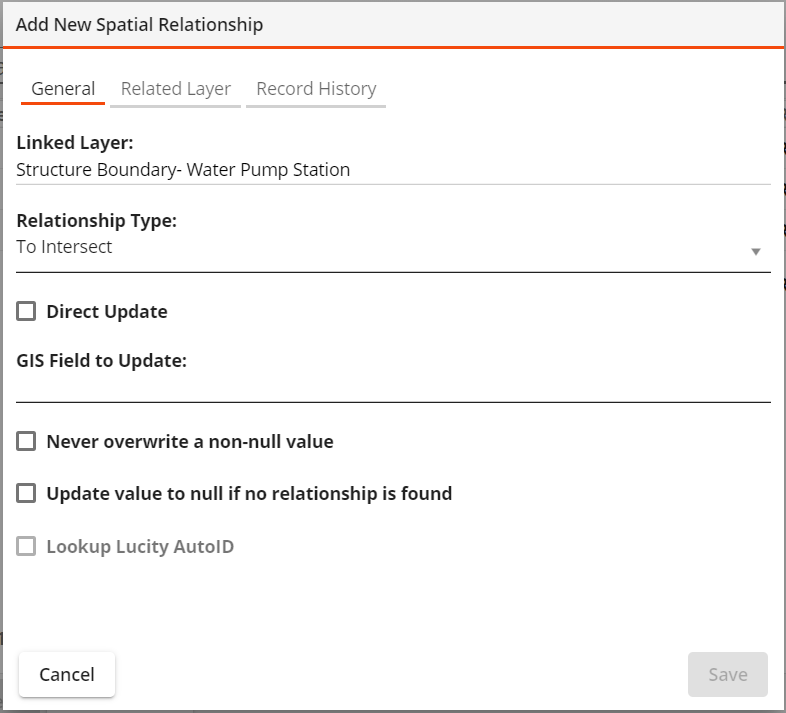
- Enter information under the General tab:
- Select a Layer Setup Name to link (required).
- Select a Relationship Type for the link (required).
Complete one of the following (required):
Enter a GIS Field to Update. -OR-
Select Direct Update, then select the Lucity Property Name to Update. This enables you to update a Lucity field without updating a GIS field.
- Select Lookup Lucity AutoID if the GIS field contains the CommonID rather than the Lucity AutoID
- Select other options as desired.
- Enter information under the Related Layer tab:
Select a related Layer Setup Name (required). If necessary, select Related layer is not linked to Lucity.
Enter a related Layer Field Name (required).
- Select Save.